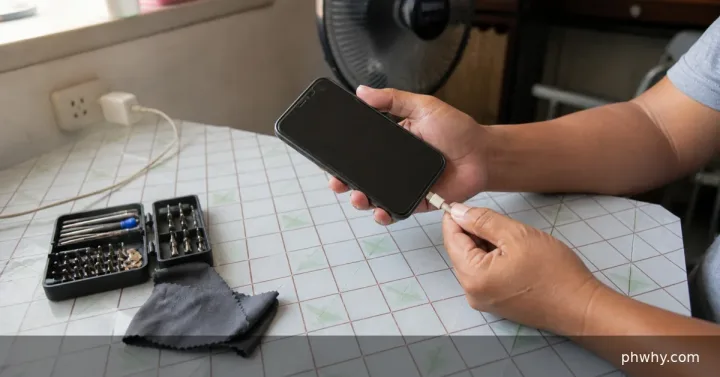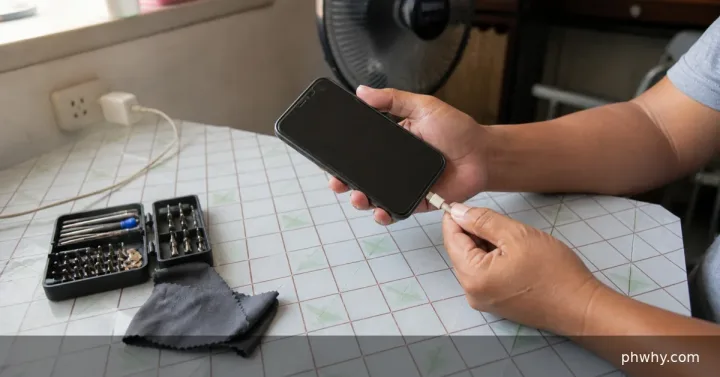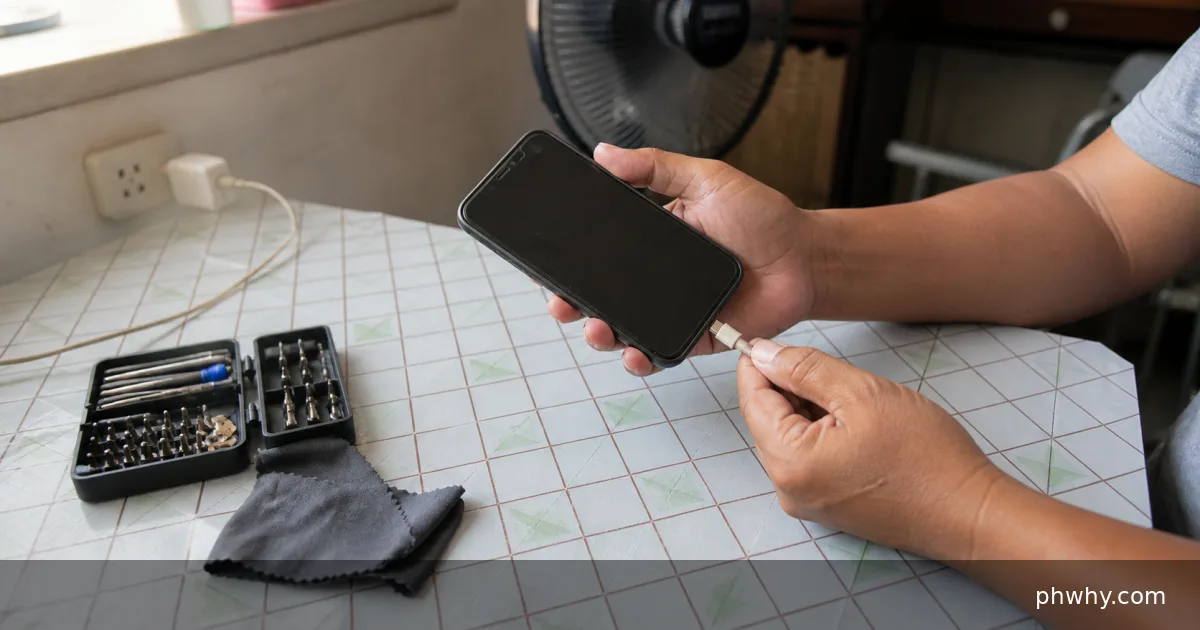
A liquid-detection warning means the phone has disabled wired charging or USB accessories to protect the connector. Unplug the cable immediately, keep the port facing down, and let both the phone and cable dry at room temperature. Do not force the warning away just because the battery is low.
Why the warning appears
iPhones can report liquid in a Lightning or USB-C connector, Google Pixel phones can report liquid or debris in the USB port, and Samsung Galaxy phones may show a water-drop icon. The wording differs, but the safety goal is the same: prevent current from passing through a wet or contaminated connector.
The warning does not always mean the phone was dropped in water. A damp cable, pocket moisture, debris, condensation, or high humidity can also trigger it. That matters in the Philippines during rainy or very humid weather. Treat the alert as genuine until the port and cable have been checked and dried.
Disconnect everything before troubleshooting
Unplug the cable from the phone and disconnect the other end from the charger or computer. Remove USB-C headphones, adapters, flash drives, hubs, and other wired accessories. If the cable or plug feels unusually hot, stop using it and let it cool without touching the metal connector.
If the phone was soaked rather than lightly splashed, power it off if you can do so normally. Remove the case and wipe the outside with a soft, lint-free cloth. Do not open the SIM tray until the exterior is dry, because opening it can give liquid another path into the phone.
Dry the port without damaging it
Hold the phone with the charging port facing down and tap it gently against your hand to help excess liquid leave the connector. Then place it on a dry surface in a well-ventilated room. A fan using cool air may help, but do not use a hair dryer, heater, direct sunlight, or any other heat source.
Do not insert tissue, cotton buds, toothpicks, pins, or cleaning tools into a wet port. Do not use compressed air and do not put the phone in rice. Those methods can push moisture or particles deeper, bend connector pins, or leave new debris inside. If the port is dry and you can see lint later, follow a careful device-appropriate method such as our guide to cleaning a USB-C port safely; never scrape a wet connector.
How long should you wait before charging?
There is no single drying time for every phone or spill. Apple says an iPhone user can try reconnecting after at least 30 minutes, but the connector may need up to 24 hours to dry fully. Google says to wait until the Pixel reports that the USB port is safe to use. Samsung advises leaving a Galaxy device to dry completely in a well-ventilated area.
If the warning returns, unplug the cable again and give the phone more time. Repeatedly reconnecting the charger every few minutes can slow the process and risks corrosion. Also inspect the cable ends from the outside; a dry phone can still react to a damp or damaged cable.
Can you use wireless charging?
If your phone supports wireless charging, the back of the phone is dry, and the device was not deeply submerged, a compatible wireless charger may provide power without using the port. Apple specifically allows wireless charging after confirming the back of the iPhone is dry. Check the phone manufacturer’s instructions for your exact model before doing this.
An iPhone may offer an emergency option to override liquid detection. That does not make the connector safe, and charging while wet can corrode the pins or cause permanent damage. Use an override only for a genuine emergency when communication is essential and no safer power option is available.
What if the port looks dry but the alert stays?
Restart the phone only after it has had time to dry. Try a different known-good, dry, manufacturer-approved cable and charger. If the alert appears only with one cable or accessory, stop using that item because its plug may be wet, dirty, corroded, or damaged.
On a Galaxy phone, Samsung Philippines says a persistent water-drop icon can sometimes be cleared by opening Settings → Apps, showing system apps, selecting USBSettings → Storage, and clearing its cache. Menu names vary by model and software version. Do this only after the phone and port are completely dry; software steps cannot remove moisture.
For a Pixel, Google recommends contacting support if the liquid-or-debris message remains for two hours or more. On any phone, arrange authorized service if the port appears burned, melted, green or white with corrosion, physically bent, or still refuses to charge after thorough drying. Stop using any cable that is frayed, discolored, loose, or unusually hot.
Protect your data while waiting
If the phone still works and has enough battery, use Wi-Fi to back up important photos, contacts, and documents before the charge becomes too low. Avoid installing apps that claim to remove moisture with sounds or vibration; they cannot dry a charging connector and may distract from the safe steps above.
If the phone becomes hot while it is not charging, smells unusual, swells, or shuts down repeatedly, move it away from flammable materials without applying pressure and contact the manufacturer or an authorized service center. For ordinary charging heat without a liquid alert, use the separate checks in why a phone gets hot while charging.
Guidance checked against Apple, Google Pixel, and Samsung Philippines support on August 29, 2026. Exact warnings and settings vary by phone model and software version.