Windows Clipboard History may look empty because the feature is off, the computer was restarted, the copied item is too large or unsupported, or the application did not actually copy it. Start with a small, ordinary sentence in Notepad. This separates a Windows clipboard problem from a problem in one website or app.
Test a simple copy first
- Open Notepad, type a short sentence, select it and press Ctrl+C.
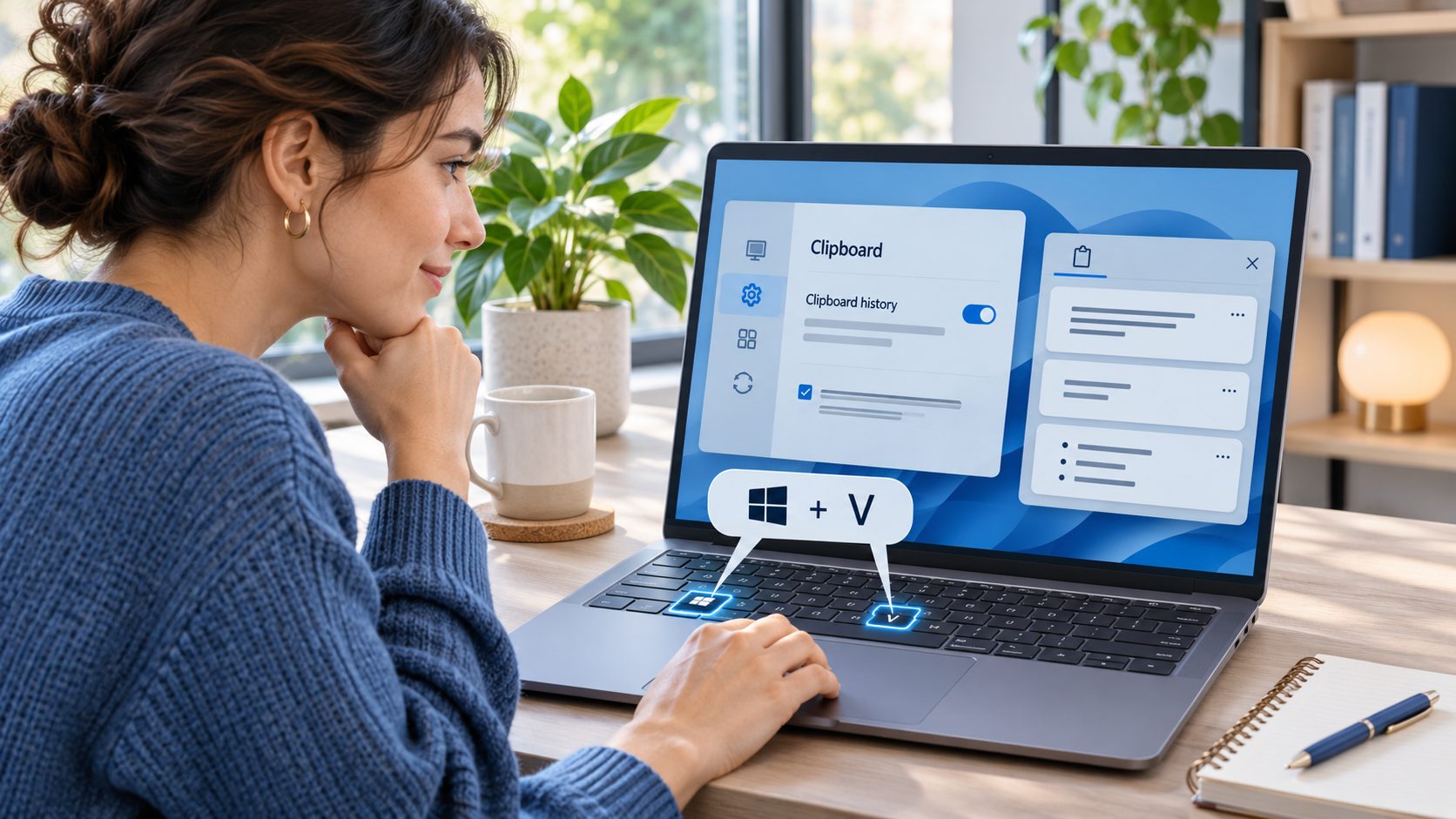
- Press Windows key+V. If a setup prompt appears, choose Turn on. If the sentence appears, Clipboard History works; return to the original app and try copying plain text there.
- If Windows key+V does nothing, open Settings > System > Clipboard and confirm that Clipboard history is on. Then test the same Notepad sentence again.
Microsoft’s clipboard guide confirms the Windows key+V shortcut and the setting. It also explains two limits that can make history appear incomplete: an individual item must be no larger than 4 MB, and the history holds up to 25 entries. Older entries can be displaced by newer copies. Clipboard History supports text, HTML and bitmap content; a file or unusual app-specific object may paste elsewhere without creating the history entry you expected.
Check what happened since the last copy
A restart clears unpinned clipboard history. If you copied something yesterday and restarted today, its absence is expected. Pin a non-sensitive item only when you genuinely need it to survive a restart. If you pressed Clear in Clipboard settings or Clear all in the history panel, make a new test copy rather than trying to recover the removed list. Do not use clipboard history to store passwords, recovery codes or private customer information.
When Notepad works but one app does not, copy a short plain-text selection from that app and try pasting it immediately into Notepad. If even the immediate paste fails, the app’s selection or copy action is the first thing to fix. If immediate paste works but history omits the item, simplify the selection and avoid large images or rich content. For a separate Windows shortcut issue, see our guide to a screenshot shortcut that stops working. Keep cross-device clipboard sync off unless you intend to send copied text to devices signed into the same account.