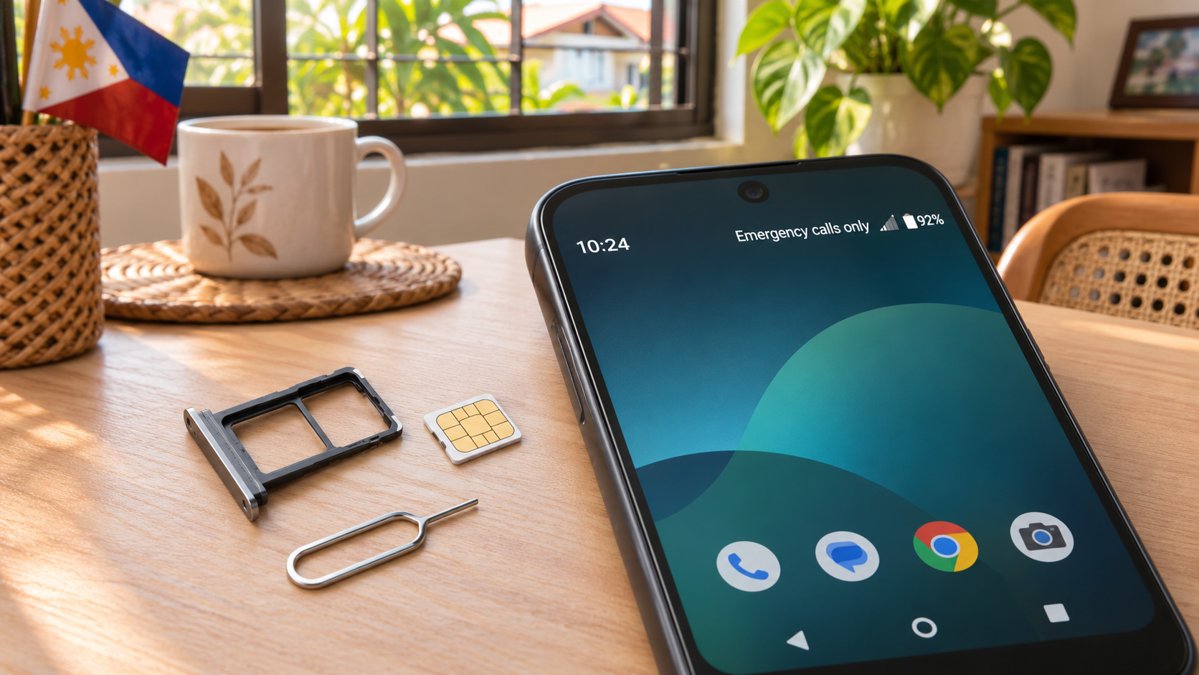
If a newly issued Globe SIM leaves your Android phone on “Emergency calls only,” first confirm that the replacement has been activated. Then check whether Android detects and enables the SIM, test another location and restart once. Do not repeatedly reset the phone or enter a SIM PIN you do not know.
This guide is for a legitimate replacement SIM obtained from Globe or GlobeOne, not for an unexpected loss of service that could indicate an account-security problem. If you did not request a replacement, contact Globe through its official channel immediately and secure accounts tied to that number.
Check the activation before changing settings
Globe’s SIM replacement guide says to wait for the successful activation notification. It says a replacement issued at a Globe store is activated within 24 hours. Treat that as the provider’s published guidance at the time of this review, not a guarantee for every account or delivery route. If the stated window has passed, contact Globe with the replacement request reference and the number registered to you. Do not post the full SIM serial number or personal ID in a public comment.
Check the Android side in order
- Look for SIM detection. Open Settings and search for SIMs or Mobile network. Check that the new SIM appears and that “Use SIM” is enabled. Menu names vary by Android brand.
- Reseat a physical SIM. Power off the phone, remove the tray gently, check that the nano SIM is seated correctly and undamaged, then power on. Do not cut the card or force the tray.
- Try a different location. Step outside or move near a window to separate weak indoor signal from a SIM or activation issue.
- Restart once. Give the phone a few minutes to register. If you use dual SIM, check that the intended SIM is enabled for calls and data.
- Compare safely. If you have a compatible unlocked phone, test the replacement SIM there. If it also fails, ask Globe to check activation or the SIM itself. If it works, focus on the first phone’s tray, settings or compatibility.
Google’s Pixel connectivity guide describes checking SIM activation, the “Use SIM” setting and trying the card in another phone. Smart’s no-signal checklist shows why a location and second-device test are useful across Philippine carriers, although Globe controls a Globe replacement.
When to contact the carrier
Contact Globe if activation has not completed within its current published window, Android shows “No SIM,” the card fails in another compatible phone, or the line was replaced without your request. Keep the request reference, device model and exact screen message. For general causes of this status, read our Emergency calls only guide.
Related questions
Will a factory reset activate the SIM?
No. Activation is controlled by the carrier. A reset can erase local data without fixing an unactivated line.
What if calls work but data does not?
That is a different symptom. Check the selected data SIM and mobile data setting, then ask Globe to verify the account and data service.
Sources checked: Globe SIM replacement, Google Pixel connectivity and Smart no-signal guidance linked above; reviewed 7 November 2026. Provider terms and Android menus may change.