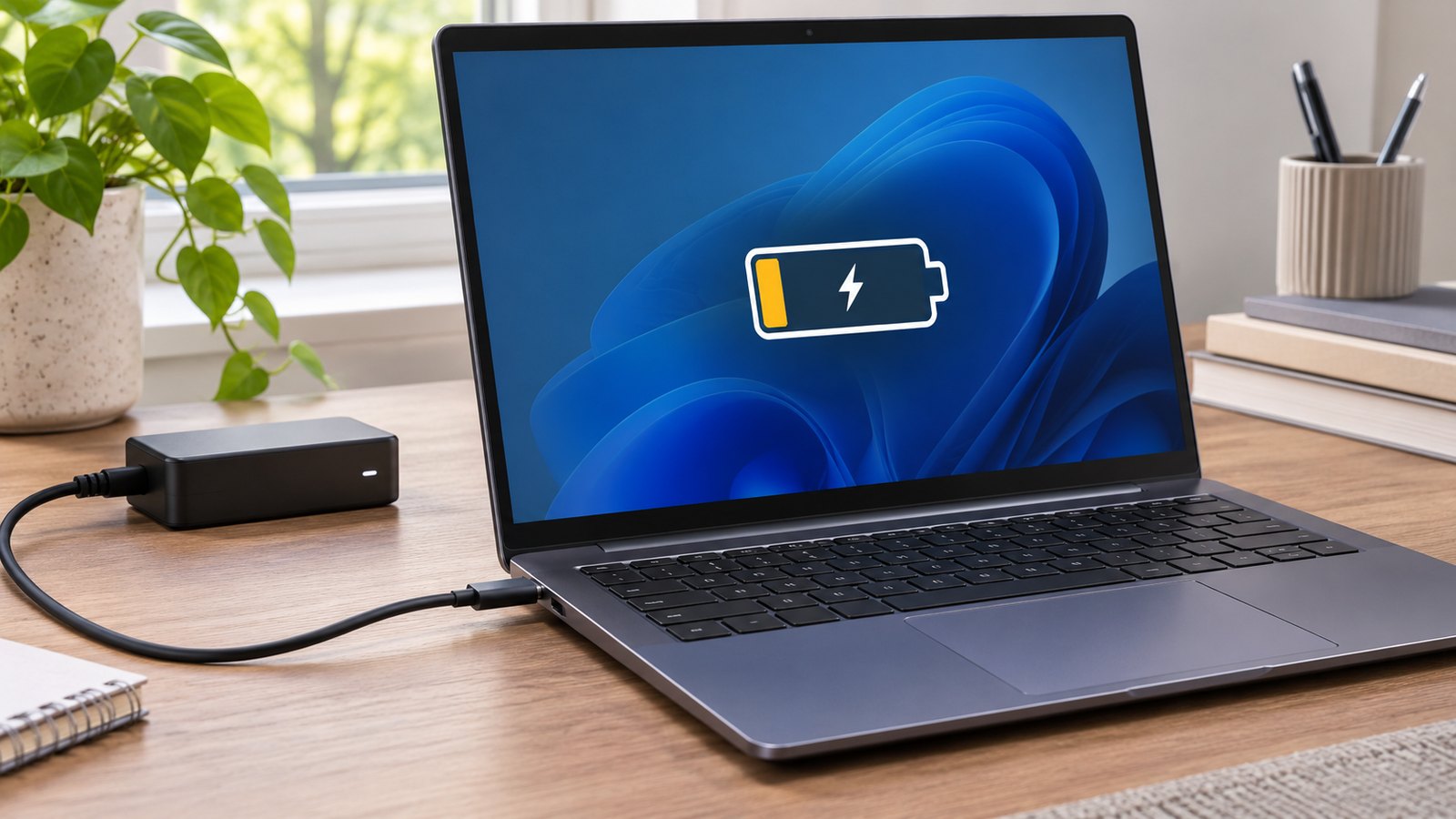
A Windows laptop can show that a charger is connected while its battery percentage stays the same. That does not always mean the battery is broken. A charging limit may be protecting battery health, or the charger and cable may be supplying less power than the computer is using. Start by observing the percentage and checking the power setup before changing software or replacing parts.
Check whether charging is intentionally limited
Leave the laptop plugged in and idle for about ten minutes, then compare the battery percentage with the starting value. If it repeatedly stops near a particular level, such as 80%, look for a battery-care option in the computer maker’s app or a Smart charging indicator in Windows. Microsoft explains Smart charging and notes that some devices intentionally stop short of 100%. Check the maker’s instructions before turning that feature off.
Test the charger, cable and port
- Use the charger and cable supplied for the laptop, or replacements that meet the maker’s stated requirements. Plug the charger directly into a working wall outlet rather than a crowded power strip.
- If the computer has more than one USB-C port, confirm that the cable is in a port that supports charging. Do not force a loose connector or use a cable with damaged insulation.
- Disconnect a dock, external display and other power-hungry accessories for the test. Let the laptop sleep briefly, then check whether the percentage rises. A charger that works only when the laptop is asleep may not provide enough power for active use.
Microsoft’s slow-charging guide lists an incompatible or underpowered charger, an unsuitable cable and the wrong charging port as possible causes. Our guide to why a USB-C charger works on one laptop but not another helps compare power requirements without assuming that every USB-C plug is interchangeable.
Decide when to stop testing
Check Settings, System, Power & battery for the current battery status, then restart once and repeat the same short observation with a known suitable charger if one is available. Record whether the percentage rises while idle, stays fixed at a configured limit, or falls even while connected. If the charger or port becomes unusually hot, the case is swollen, or charging remains erratic with a suitable charger, unplug it and contact the laptop maker or a qualified repair service. Avoid opening the battery compartment or repeatedly swapping unknown adapters.