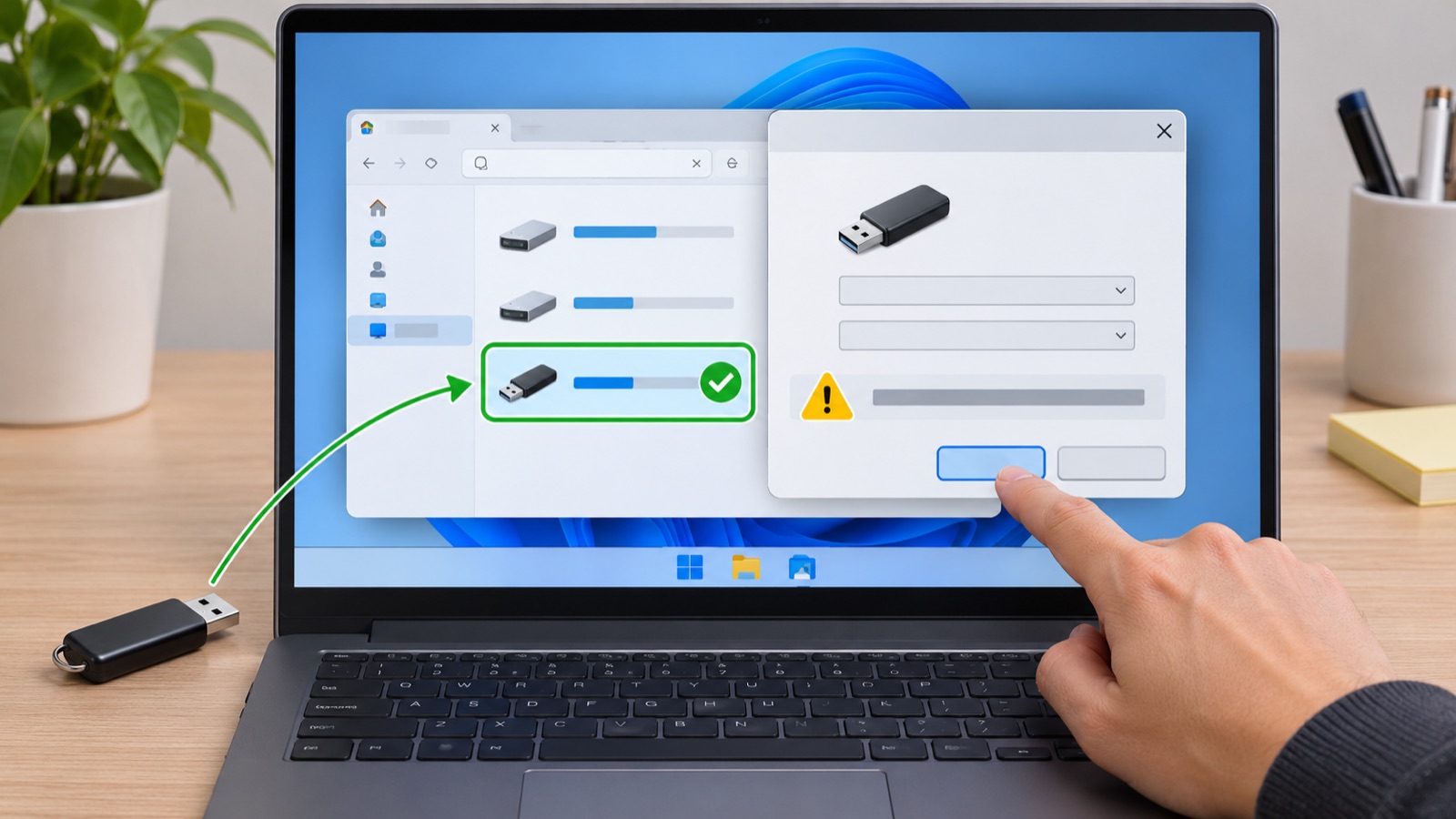
Windows asks to format a USB drive when it cannot read the volume in the way it expects. The drive may use a file system this computer does not understand, the connection may be unstable, or the file system may be damaged. The prompt alone does not prove that the drive is empty. If the files matter, choose Cancel and stop writing to the drive until you understand the cause.
Check the simple causes first
- Disconnect the drive using the safe removal option if Windows offers it. Plug it directly into a different USB port, without a hub or adapter. A weak connection can make a healthy drive appear unreadable.
- Try the same drive on a computer that has opened it before. If the files appear there, copy them to another disk before changing the USB drive. Note whether that computer uses Windows, macOS or another system.
- Open Disk Management on Windows by right-clicking Start and choosing Disk Management. Identify the removable drive by its capacity, not just its letter. Look at whether it has a partition, a recognized file system and a drive letter. Do not select Initialize, Delete Volume or Format during this inspection.
- If the volume is visible but has no drive letter, record what Disk Management shows before changing anything. If it appears as RAW or Unallocated and the files are important, stop and seek a recovery copy or specialist help rather than experimenting on the original drive.
Decide what to do next
Microsoft’s Disk Management guidance warns that formatting a volume destroys its data. A quick format is still a format; it is not a harmless way to make files reappear. If this is a brand-new empty drive, verify that it is truly empty and that you have selected the correct disk before formatting. If it contains irreplaceable work, keep the original untouched and avoid repair utilities that write changes until you have a backup or recovery plan.
When the files are safely copied, test the USB drive again. Repeated disconnects, unusually slow reads or another format prompt are reasons to replace it rather than trust it with your only copy. If Windows says the drive is busy during safe removal, our guide to a USB drive that appears to be in use explains the next checks.