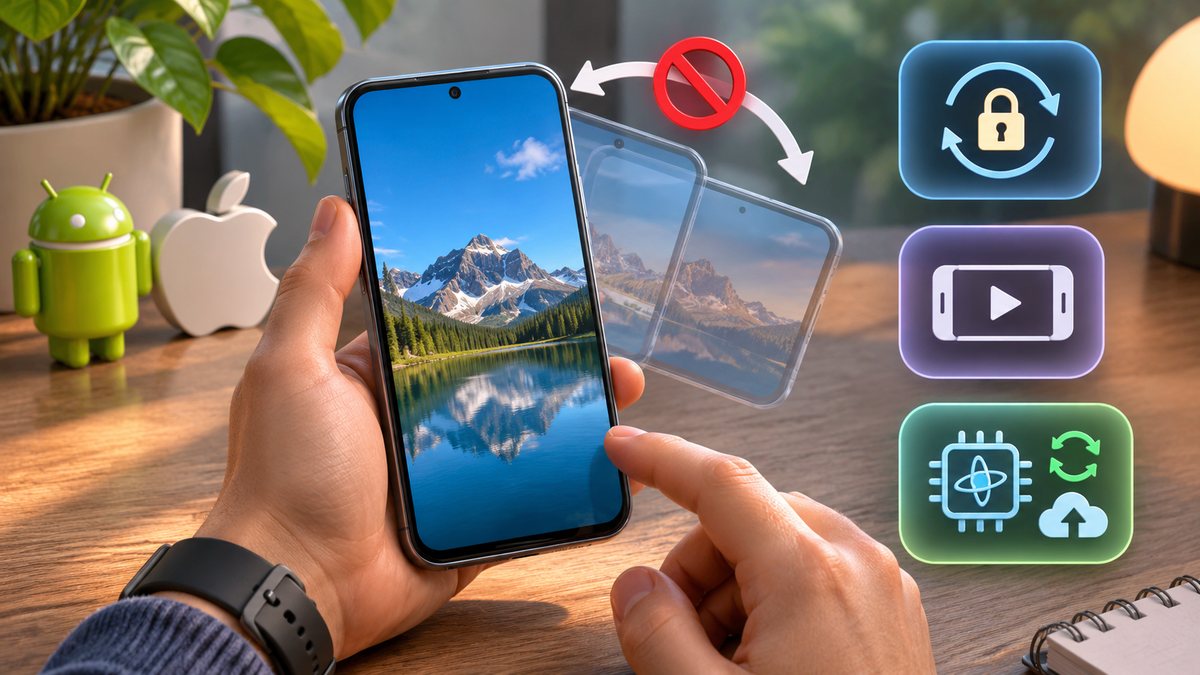
A phone that does not rotate is usually following an orientation-lock setting or an app that supports only portrait or landscape. The Home Screen may behave differently from a video or photo app. Test a known rotating app before assuming that the motion sensor has failed.
Check orientation lock
On iPhone, open Control Centre and make sure Portrait Orientation Lock is off. On Android, open Quick Settings and change Portrait to Auto-rotate; names vary by manufacturer. Rotate the phone slowly while holding it upright.
Do not shake or strike the phone to “wake” a sensor. Physical impact can damage the display and battery.
Test in an app that supports rotation
Open the browser, Photos or another trusted app that normally rotates. Some games, banking apps, camera screens and launchers intentionally lock one orientation. Apple also notes that not every app supports rotation.
If one app alone stays fixed, update it from the official store and check its display setting. Reinstall only after confirming that its data or progress is synced.
Close split-screen and accessibility overlays
Foldables, split-screen windows, screen magnifiers and some accessibility controls can affect layout. Return the app to full screen and close floating windows for a clean test. Keep accessibility features you rely on; change them only temporarily and record the original setting.
For a separate touch problem, use the phone maker’s support process rather than a screen-calibration app from an advertisement.
Restart and install official updates
Restart the phone normally. Install the current iOS or Android update and the affected app update. Remove a tight or magnetic accessory only for testing if it presses buttons or interferes with a folding mechanism.
Back up before any full reset. A reset is unnecessary when rotation fails only in one app or one screen.
Recognise a possible sensor or display fault
If every supported app remains fixed after a restart, note whether compass, level or motion-dependent features also behave incorrectly. A recent drop, liquid exposure or repair increases the chance of hardware damage.
Use the manufacturer’s diagnostic or service channel. Avoid secret-code menus and apps that claim to recalibrate the accelerometer without documentation.
Before you make a major change
Record the device model, operating-system version and the exact time the problem appears. Save open work, use the normal restart command, and change one setting at a time. That makes it possible to undo a change and identify the actual cause. Avoid registry cleaners, driver-download sites and applications that promise an instant repair; they can introduce unwanted software or replace a correct driver with an incompatible one.
If the device belongs to an employer or school, stop before removing profiles, security software or management settings. Those controls may be required by policy. On a personal device, back up important files before a reset or reinstall. A factory reset is a last resort, not a first troubleshooting step.
When to contact support
Contact the device maker, operating-system provider or network administrator when the same fault survives a normal restart, official updates and the focused checks above. Include screenshots, error wording and the result of a test with another trusted device or network. Seek hardware service when ports are loose, a battery is swollen, the device is unusually hot, or the problem also appears outside the operating system.
Official references
- Apple Support: Rotate the screen on your iPhone or iPod touch
- Apple iPhone User Guide: Rotate the iPhone screen
Reviewed: 14 October 2026. Menu names and supported features can vary by device, software version, region and organisation policy.