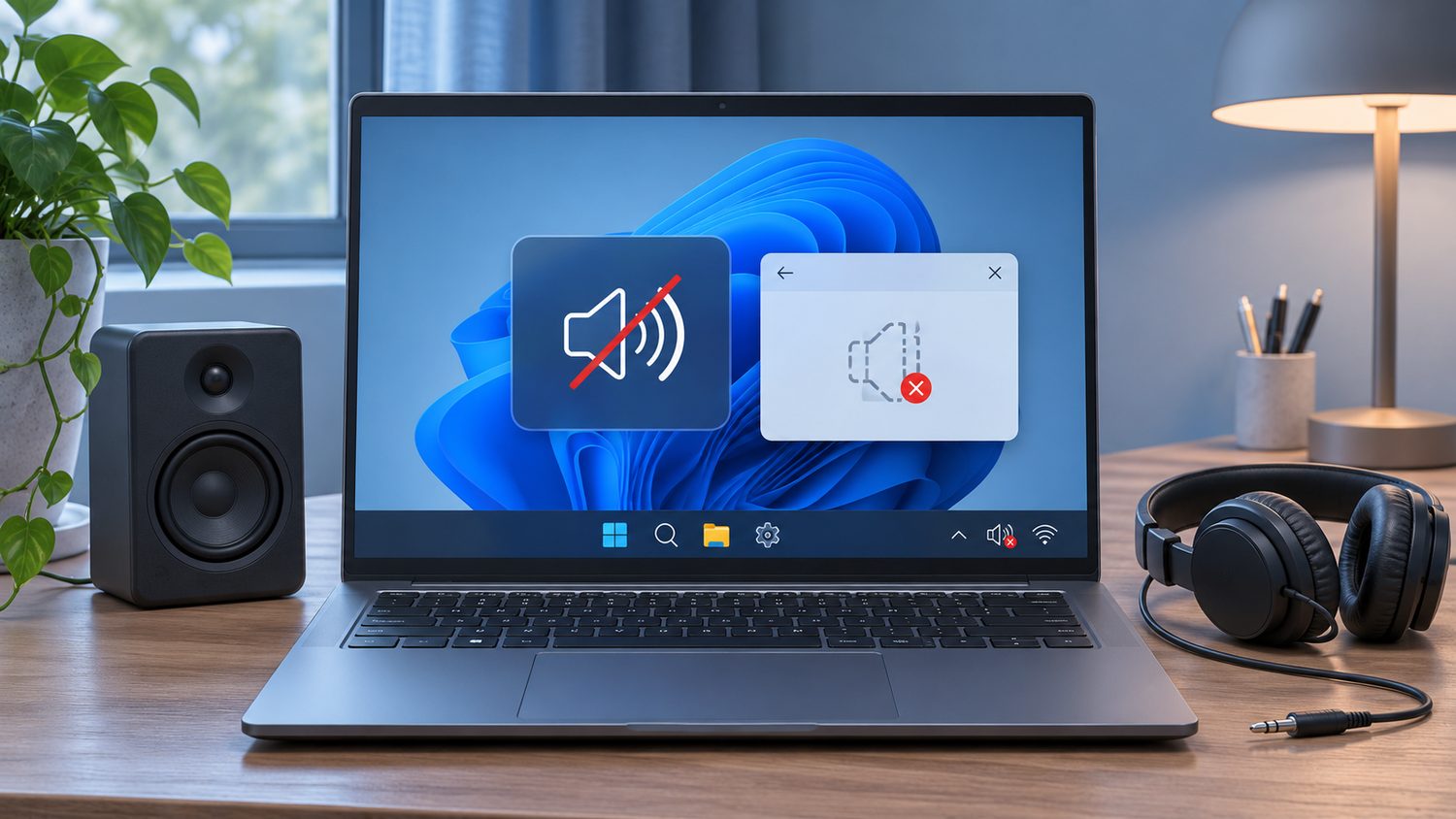
“No audio output device is installed” means Windows is not currently offering a usable speaker or headset as an output. The cause may be a disabled device, a driver that failed to load, a recent update, or disconnected hardware. Start with checks that do not remove your settings or install software from an unknown website.
Confirm what Windows can see
- Unplug and reconnect wired headphones or speakers. If you use a USB audio device, try another USB port. Check the device’s power and cable before changing Windows settings.
- Open Settings, System, Sound. Look under Output. If your normal device appears, select it and test sound. If it does not appear, continue to Device Manager.
- Right-click Start, open Device Manager, and expand Sound, video and game controllers. If the audio device is listed but disabled, enable it. Use View, Show hidden devices, then Action, Scan for hardware changes if it is absent. Microsoft’s missing audio output device guide documents these checks.
Use the built-in repair path
Save your work and restart the computer. On Windows 11, run the Audio troubleshooter through the Get Help app if the device is still missing. Check Windows Update for pending updates. If the problem started after a change, note the date and the driver version before you alter anything else.
If Device Manager still cannot detect the audio device, get the driver for your exact laptop or sound card model from the manufacturer’s official support site. Match your Windows version, install the driver, then restart. Do not use a generic driver-download advertisement or disable security features to make a driver install. If there is a warning icon in Device Manager, record its error code for support.
Know when the issue is different
If Bluetooth headphones appear as connected but sound still comes from the laptop, that is an output-selection problem rather than a missing audio device. Our Bluetooth speaker audio guide walks through that case. If neither built-in speakers nor known-good headphones appear after the official driver and restart checks, contact the device manufacturer with the model, Windows version and Device Manager details. Avoid opening the laptop unless a qualified technician recommends it.