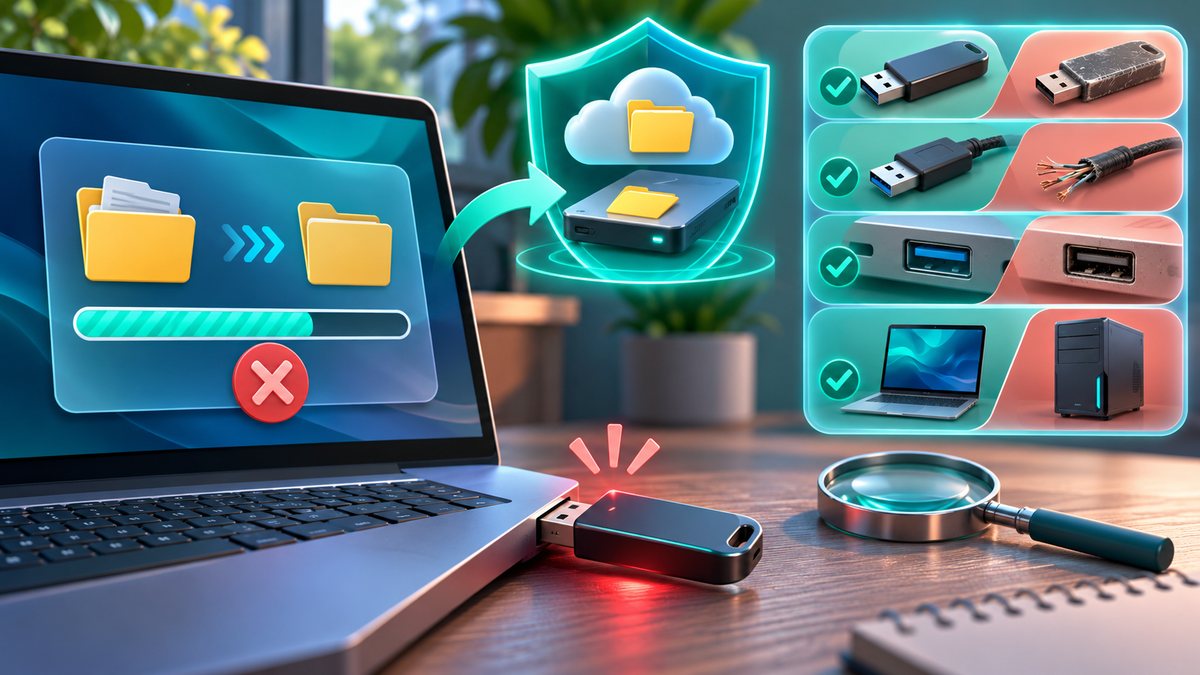
A USB drive that disconnects halfway through a copy can leave a destination file incomplete. Before troubleshooting, stop repeated large transfers. Keep the source files on the computer until you have opened and checked the copies.
Test the connection gently
Reconnect the drive directly to a different USB port, without a hub or adapter if possible. For an external hard drive, use its intended power supply or a known-good cable. A loose connector may fail only when the cable moves; do not keep wiggling a damaged port while data is being written.
- Copy one small disposable file, then open it from the drive.
- Try the same drive on another trusted computer, and try a known-good drive in the original port.
- Notice whether the drive disconnects at idle, only during large copies, or when it gets warm.
- Use the operating system’s eject control before unplugging it.
Preserve data before repair
If the drive asks to be formatted, do not accept until important files have been recovered. Formatting erases the existing file system. If it stays connected long enough, copy irreplaceable data from the drive to another disk first. A clicking hard drive, repeated disconnects on multiple computers or unusually slow reads can indicate a hardware problem; stop testing and consider professional recovery for valuable files.
Windows power saving can suspend USB devices, but changing advanced power settings should be a later diagnostic step, not the first fix. Record the original setting and restore it if it makes no difference. A reliable cable, port and backup matter more than forcing repeated writes to a failing drive.