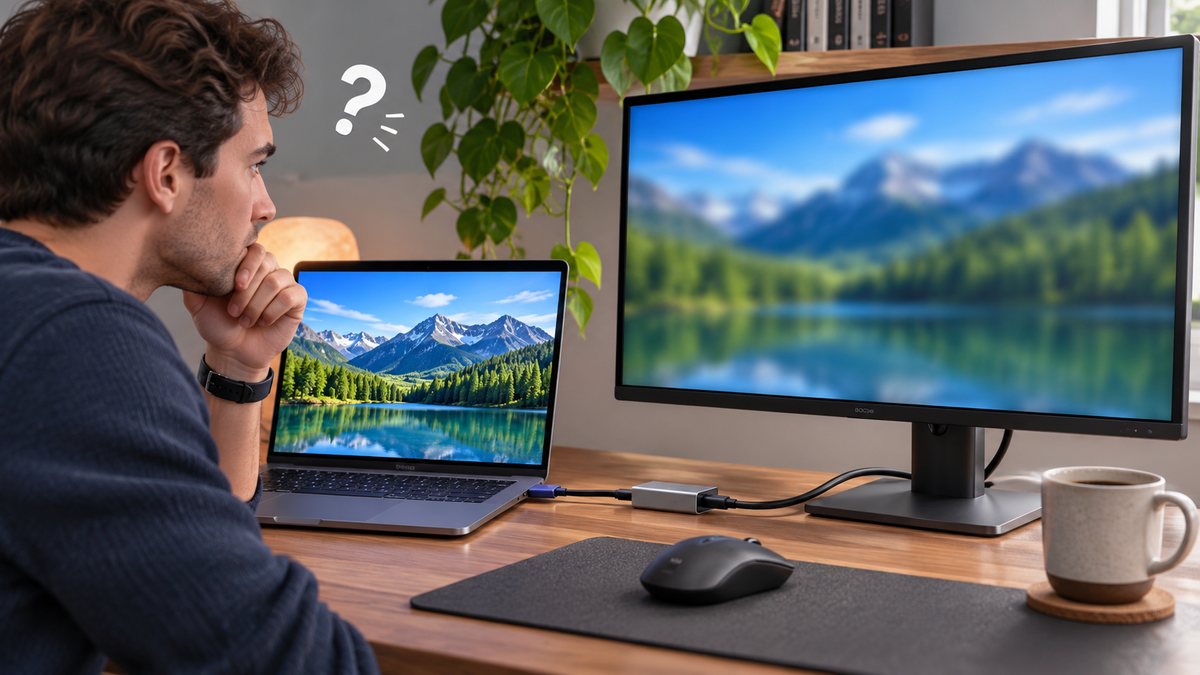
A blurry external monitor is often receiving the wrong resolution or scale rather than failing physically. Windows may also be duplicating two displays with different native resolutions, while a cable or adapter can limit the available signal. Start with the monitor’s recommended setting and a direct connection.
Select the intended display
Open Settings, System, Display and click the external monitor in the diagram. Changes apply to the selected screen, so confirm its number with Identify. Choose the resolution marked Recommended and keep the refresh rate within the monitor’s documented range.
A lower resolution is stretched across the panel and can soften text. Do not force an unsupported mode with third-party utilities.
Compare Extend and Duplicate modes
Duplicate mode sends a common resolution to both screens, which may not be ideal when the laptop and monitor have different aspect ratios. Press Windows+P and test Extend. Then set each display to its recommended resolution.
If the monitor also loses the picture, follow our USB-C monitor connection guide before changing display drivers.
Adjust scale and sign out if prompted
Use the recommended Scale value first. Very small text is better corrected with supported scaling than by lowering resolution. Some older desktop apps remain blurry until they are closed and reopened after a scale change.
If Windows requests a sign-out, save work and do so normally. Custom scaling can create inconsistent results across displays, so record the old value before experimenting.
Check cable, dock and monitor settings
Connect the monitor directly when possible and try a cable certified for the required resolution and refresh rate. A dock, passive adapter or older port can restrict the signal. Use the monitor’s on-screen menu to reset sharpness to its neutral or factory value.
Avoid extreme sharpness because it creates bright halos rather than real detail. Use the monitor maker’s documented input mode and disable overscan for a PC signal where that option exists.
Update through Windows and the manufacturer
Install normal Windows graphics updates and approved dock firmware from the PC or dock maker. Restart after the update. If only one app stays blurry, update that app and test its high-DPI support.
Photograph the Display settings and monitor model for support. The native resolution printed in the manual is the key reference.
Before you make a major change
Record the device model, operating-system version and the exact time the problem appears. Save open work, use the normal restart command, and change one setting at a time. That makes it possible to undo a change and identify the actual cause. Avoid registry cleaners, driver-download sites and applications that promise an instant repair; they can introduce unwanted software or replace a correct driver with an incompatible one.
If the device belongs to an employer or school, stop before removing profiles, security software or management settings. Those controls may be required by policy. On a personal device, back up important files before a reset or reinstall. A factory reset is a last resort, not a first troubleshooting step.
When to contact support
Contact the device maker, operating-system provider or network administrator when the same fault survives a normal restart, official updates and the focused checks above. Include screenshots, error wording and the result of a test with another trusted device or network. Seek hardware service when ports are loose, a battery is swollen, the device is unusually hot, or the problem also appears outside the operating system.
Official references
- Microsoft Support: Change display resolution and layout in Windows
- Microsoft Support: Troubleshoot external monitor connections
Reviewed: 12 October 2026. Menu names and supported features can vary by device, software version, region and organisation policy.