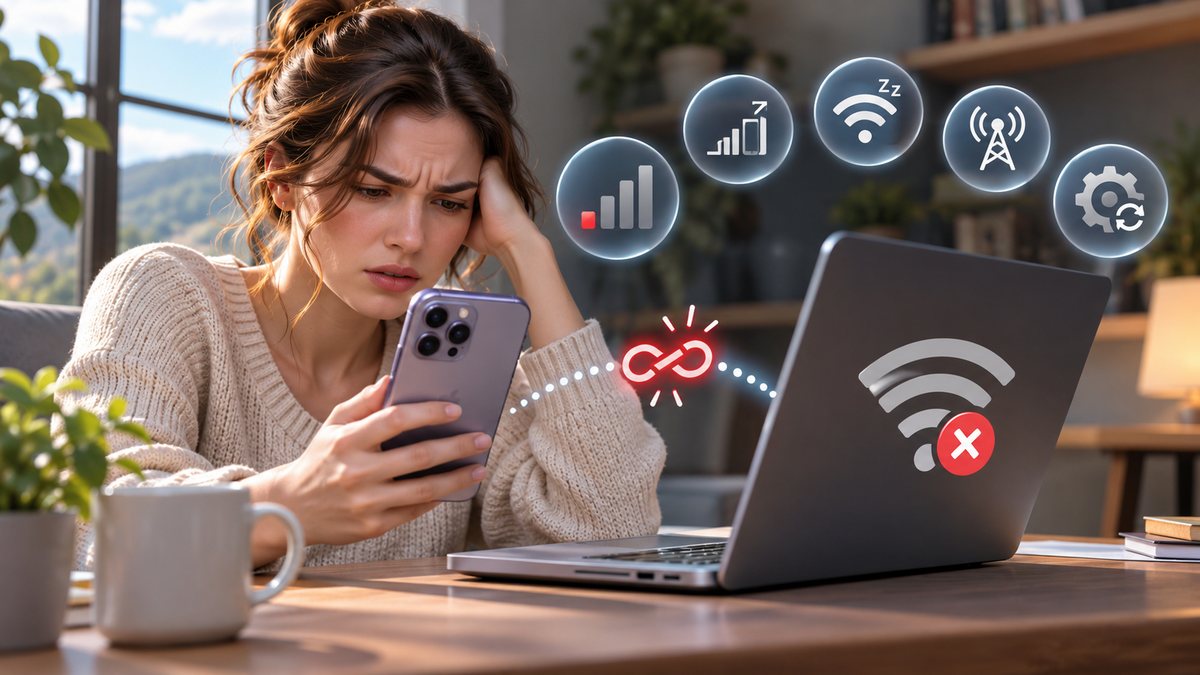
Personal Hotspot depends on both the iPhone’s cellular connection and the local Wi-Fi, Bluetooth or USB link to the other device. A drop can therefore happen even when one side still shows signal. Check the carrier connection, keep the Hotspot screen open for discovery, and reconnect with the current password.
Confirm cellular data and plan support
Load a normal web page on the iPhone with Wi-Fi turned off. If cellular data itself is unstable, move to a location with better service or ask the carrier about the account. Apple notes that Personal Hotspot availability depends on the carrier and plan.
Do not use unofficial carrier profiles or configuration files offered by a website. They can change network and certificate settings.
Keep Personal Hotspot discoverable during setup
Open Settings, Personal Hotspot and enable Allow Others to Join. Keep that screen open while the other device searches. Verify the Wi-Fi password without displaying it to people who do not need access.
Disconnect unknown clients by changing the hotspot password, then reconnect your own devices. Use a strong password rather than a short shared phrase.
Try Maximize Compatibility when appropriate
On supported iPhones, Maximize Compatibility can improve connections with some older devices by changing hotspot behaviour, although performance may be lower. Toggle it once and test at close range.
Our connected-without-internet guide covers the different case where the local link stays up but data does not pass.
Forget and reconnect on the client
On the laptop or tablet, forget the iPhone hotspot network and join it again with the current password. Temporarily disable VPN software on the client only for a controlled test if organisational policy permits, then restore it.
For USB tethering, use a data-capable cable and trust the computer only when it is yours. For Bluetooth, remove stale pairings on both devices before pairing again.
Restart, update and reset only as a last step
Restart the iPhone and the connecting device. Install official iOS and operating-system updates. Apple recommends Reset Network Settings later in the process, but it also resets saved Wi-Fi networks, cellular settings and VPN/APN details.
Record necessary network information before a reset. Contact the carrier if hotspot options are absent or disconnects correlate with a data allowance.
Before you make a major change
Record the device model, operating-system version and the exact time the problem appears. Save open work, use the normal restart command, and change one setting at a time. That makes it possible to undo a change and identify the actual cause. Avoid registry cleaners, driver-download sites and applications that promise an instant repair; they can introduce unwanted software or replace a correct driver with an incompatible one.
If the device belongs to an employer or school, stop before removing profiles, security software or management settings. Those controls may be required by policy. On a personal device, back up important files before a reset or reinstall. A factory reset is a last resort, not a first troubleshooting step.
When to contact support
Contact the device maker, operating-system provider or network administrator when the same fault survives a normal restart, official updates and the focused checks above. Include screenshots, error wording and the result of a test with another trusted device or network. Seek hardware service when ports are loose, a battery is swollen, the device is unusually hot, or the problem also appears outside the operating system.
Official references
- Apple Support: If Personal Hotspot is not working
- Apple iPhone User Guide: Share your internet connection
Reviewed: 15 October 2026. Menu names and supported features can vary by device, software version, region and organisation policy.