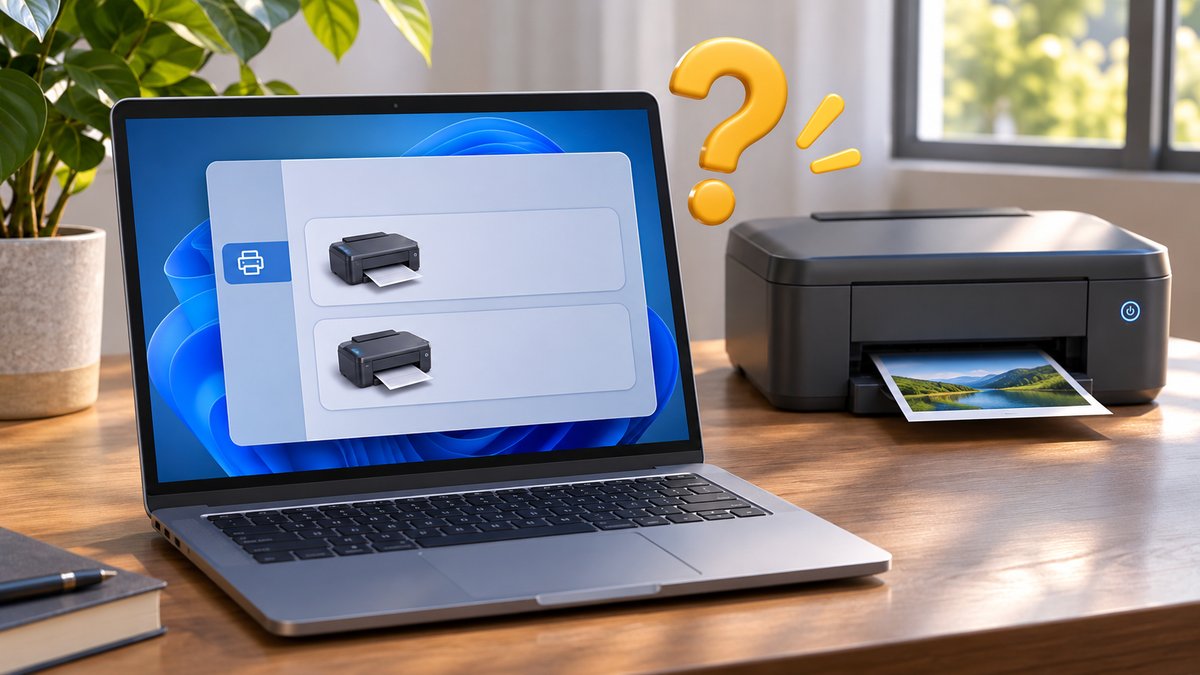
Windows can show two entries with similar names for one physical printer. This may happen after a printer is reconnected by a different route, such as USB instead of Wi-Fi, or when a shared office queue is added alongside a direct connection. Do not remove either entry until you know which one is actually being used.
Find the working entry
- Open Settings, Bluetooth & devices, then Printers & scanners. Note the full names of both entries and which one is marked as the default.
- Check that the printer is awake and connected. Send a small test page through the first entry, then through the second if needed. Do not queue a large document twice.
- Open the printer details for each entry and compare the connection or queue information. An office printer may have a managed shared queue that should be left in place.
- Set the working entry as the default if it is not already selected. Test printing from the app that originally had trouble.
- Only if the other entry is clearly unused, select it in Printers & scanners and choose Remove. Ask an office administrator before removing a shared queue.
Microsoft explains the printer removal path in its Windows printer guide: https://support.microsoft.com/en-us/windows/hardware/printer/add-or-install-a-printer-in-windows . If both entries fail, investigate the connection and printer status before changing drivers.
Before removing a duplicate
Microsoft’s print-queue guide notes that the queue window lets you select which printer queue you are viewing. Compare each entry’s exact name and test page, then choose the active entry as the default in Settings. If the other entry is a managed network queue, ask IT before deleting it; a similar name does not mean it is disposable. See our stuck print-job guide if both entries show pending documents. Source check: 7 November 2026.
Check both routes after a change
A printer may be available by USB, direct Wi-Fi and a managed office print server. These can create separate queues with similar labels. After changing the default, print once from the program you actually use and verify that it reaches the expected physical device. Keep the other route if another user or office policy relies on it. If you later change from USB to Wi-Fi, return to Printers & scanners and confirm the default did not switch to an offline queue.