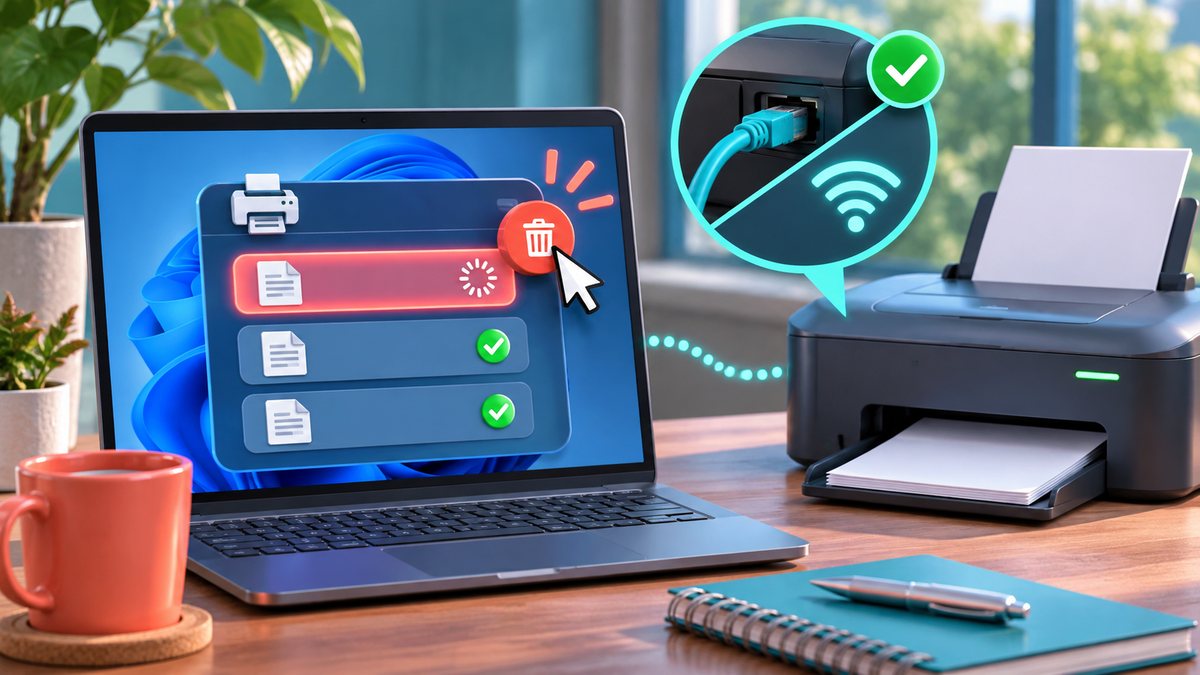
A print job may stay in the Windows queue because the printer is paused, the connection dropped or an earlier document has blocked everything behind it. Repeatedly clicking Print can create duplicate pages once the printer reconnects. Check the queue before sending another copy.
Unblock the queue
- Check the printer for paper, an open cover or an error message. Confirm it is powered on and connected to the expected network or USB port.
- Open Windows Settings, Bluetooth & devices, Printers & scanners, select the printer and open its queue.
- Look for Pause Printing or Use Printer Offline. Remove the stuck job if it is safe to cancel, then wait for the queue to update.
- Send one small test page. If it succeeds, resend the original document once.
- If the queue still does not move, restart the printer and computer and check the manufacturer’s driver or support instructions for that model.
Do not delete a shared office queue without checking with other users. If every document fails only from one computer, focus on that computer’s printer setup rather than resetting the entire printer.
When the queue remains stuck
Microsoft’s printer troubleshooting guide recommends checking that the printer is on the same Wi-Fi network, then checking its queue and default-printer setting. If cancellation is safe and the queue still will not move, restart the Print Spooler service from Windows Services and retry one test page. A shared-office queue may contain other people’s documents, so ask the administrator before cancelling every job. Do not install a driver from an advertisement; use the printer maker’s support site. Source check: 7 November 2026.
How to avoid duplicate pages
When a printer is offline, a queued document may print later without warning. Before reconnecting, check the queue for earlier copies of the same document. Cancel only the duplicates that belong to you. If a shared printer is involved, ask the other users before clearing the entire queue. If a single app repeatedly creates stuck jobs while a Windows test page prints normally, export a fresh PDF from that app and test it once; the document or app may be the failing layer.