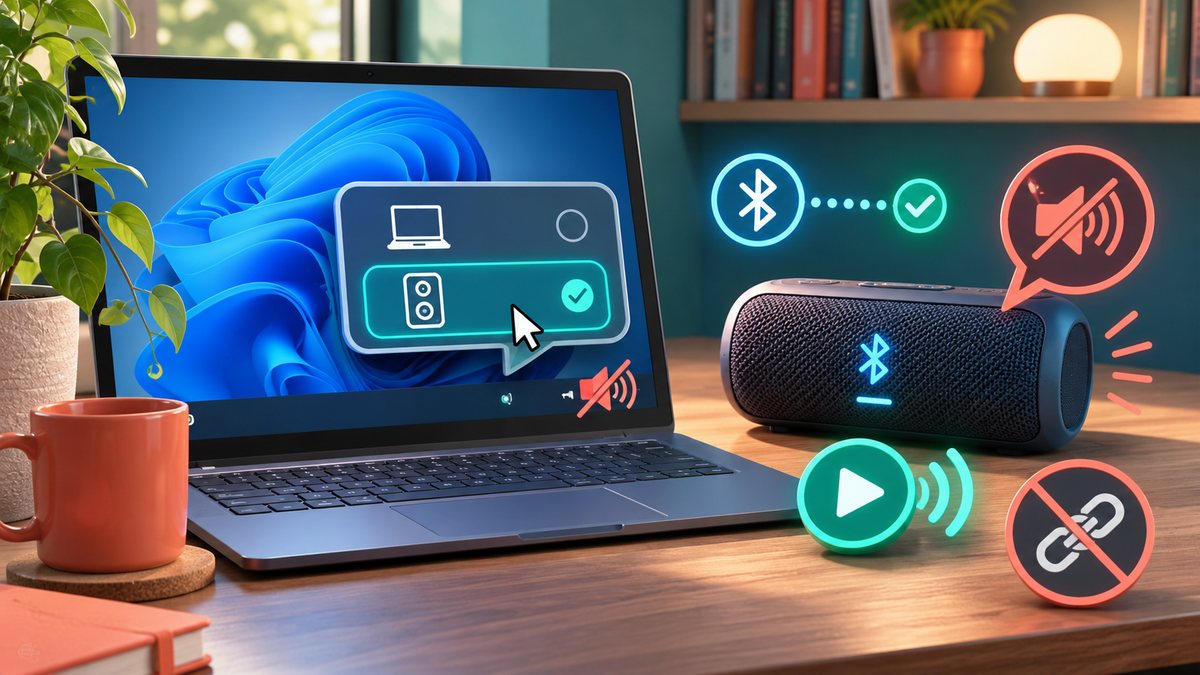
A Bluetooth speaker can appear connected in Windows while sound still comes from the laptop speakers. The connection status only tells you that the devices are paired; it does not always mean the speaker is the current audio output. Start with a short test sound at a comfortable volume and change one setting at a time.
Check the audio route
- Confirm that the speaker is powered on, charged and not connected to another nearby device that is playing audio.
- Open Windows Settings, System, Sound. Under Output, select the Bluetooth speaker rather than the laptop or monitor. Check the volume on both Windows and the speaker.
- Open the volume mixer and confirm that the affected app is using the expected output and is not muted.
- Play a local audio file and then try the original app. If one works and the other does not, inspect that app’s audio settings.
- Only after those checks, disconnect and reconnect the speaker. Restart Bluetooth or the computer if the route remains stuck.
Record which step changed the result. If the same speaker fails on another device, test its own controls and charging cable before changing more Windows settings.
Why pairing alone does not route sound
Bluetooth pairing tells Windows that the speaker is available; it does not prove that the current app is sending audio to it. Open Settings → System → Sound and select the Bluetooth speaker under Output. Play a local test sound, then check the app’s own output device and Windows Volume Mixer. If a video-call app is using a separate communication device, set that app’s speaker explicitly. Microsoft’s Bluetooth no-sound guide also recommends checking volume and, if needed, removing and pairing the device again.
Should I reinstall drivers first?
No. Test the selected output and volume first. If the speaker works with another phone but never with this PC, then check Windows Update and the PC maker’s driver page. Avoid third-party driver download ads. Source check: 7 November 2026.