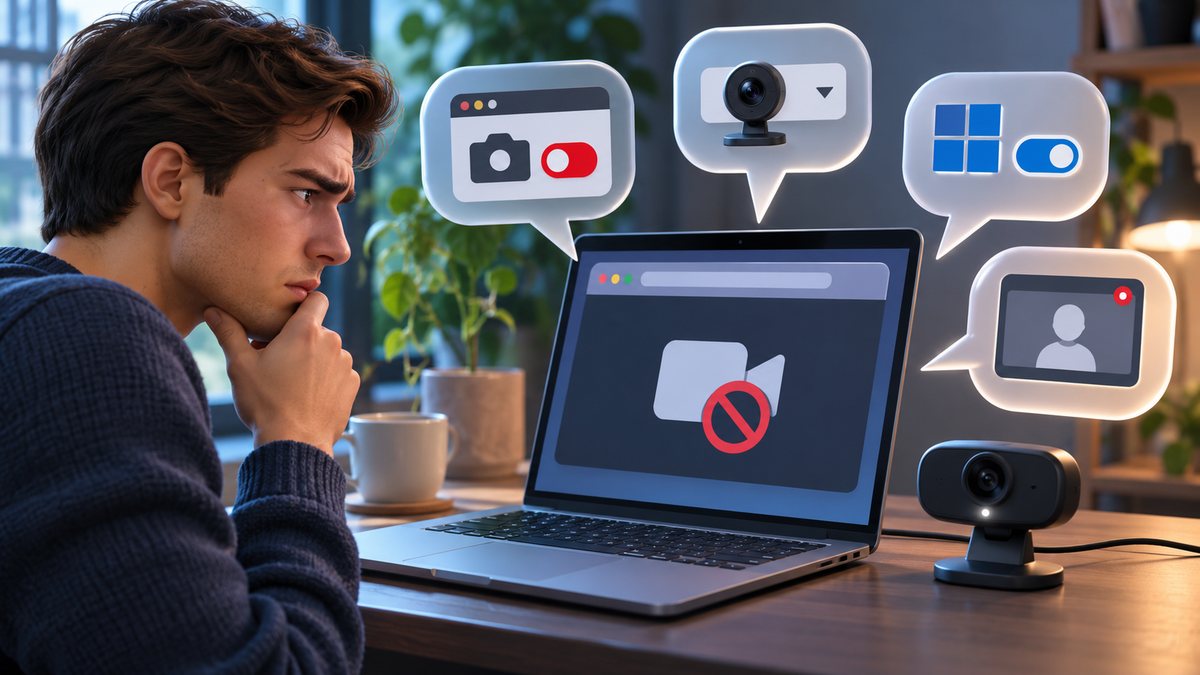
A website can report that the camera is blocked even when the camera works in another app. The browser maintains a permission for each site, Windows maintains a separate privacy control, and a meeting page may have selected the wrong camera. Grant access only to the exact site you trust.
Confirm the web address and request
Check the address bar and make sure the page uses HTTPS and belongs to the expected service. A camera request is reasonable for a video call or identity capture you initiated; it is suspicious on an unrelated page or pop-up.
Never install a browser extension or remote-support tool because a page says the camera is blocked. Close unexpected prompts.
Change the permission for that site only
In Chrome, select the site information control beside the address and review Camera. Choose Allow for the trusted site, reload the page, and approve the prompt. Chrome also provides a central Camera settings page for reviewing blocked sites.
Remove old permissions you no longer need. Google notes that Chrome can reset permissions for sites that have not been used for a while.
Select the correct camera
Open the browser’s camera settings and choose the built-in or external device you intend to use. Then check the meeting page’s own device selector. Close other call, recording and camera apps before retesting.
If the Windows camera light remains on after every app is closed, see our camera indicator guide.
Check Windows camera privacy
Open Settings, Privacy & security, Camera. Enable camera access for the device and the desktop-app control if the browser requires it. Microsoft explains that desktop applications are covered by a broader switch rather than always appearing individually.
On a managed device, these settings may be controlled by policy. Ask the administrator instead of editing policy or the registry.
Test without destructive resets
Restart the browser, then the computer. Update the browser from its official menu and Windows through Settings. Test the built-in Camera app to separate a browser problem from a system or hardware problem.
Clearing all browsing data is rarely the first step because it signs you out and removes unrelated site state. Reset only the camera permission for the affected site first.
Before you make a major change
Record the device model, operating-system version and the exact time the problem appears. Save open work, use the normal restart command, and change one setting at a time. That makes it possible to undo a change and identify the actual cause. Avoid registry cleaners, driver-download sites and applications that promise an instant repair; they can introduce unwanted software or replace a correct driver with an incompatible one.
If the device belongs to an employer or school, stop before removing profiles, security software or management settings. Those controls may be required by policy. On a personal device, back up important files before a reset or reinstall. A factory reset is a last resort, not a first troubleshooting step.
When to contact support
Contact the device maker, operating-system provider or network administrator when the same fault survives a normal restart, official updates and the focused checks above. Include screenshots, error wording and the result of a test with another trusted device or network. Seek hardware service when ports are loose, a battery is swollen, the device is unusually hot, or the problem also appears outside the operating system.
Official references
- Google Chrome Help: Use your camera and microphone
- Microsoft Support: Manage app permissions for a camera in Windows
Reviewed: 13 October 2026. Menu names and supported features can vary by device, software version, region and organisation policy.