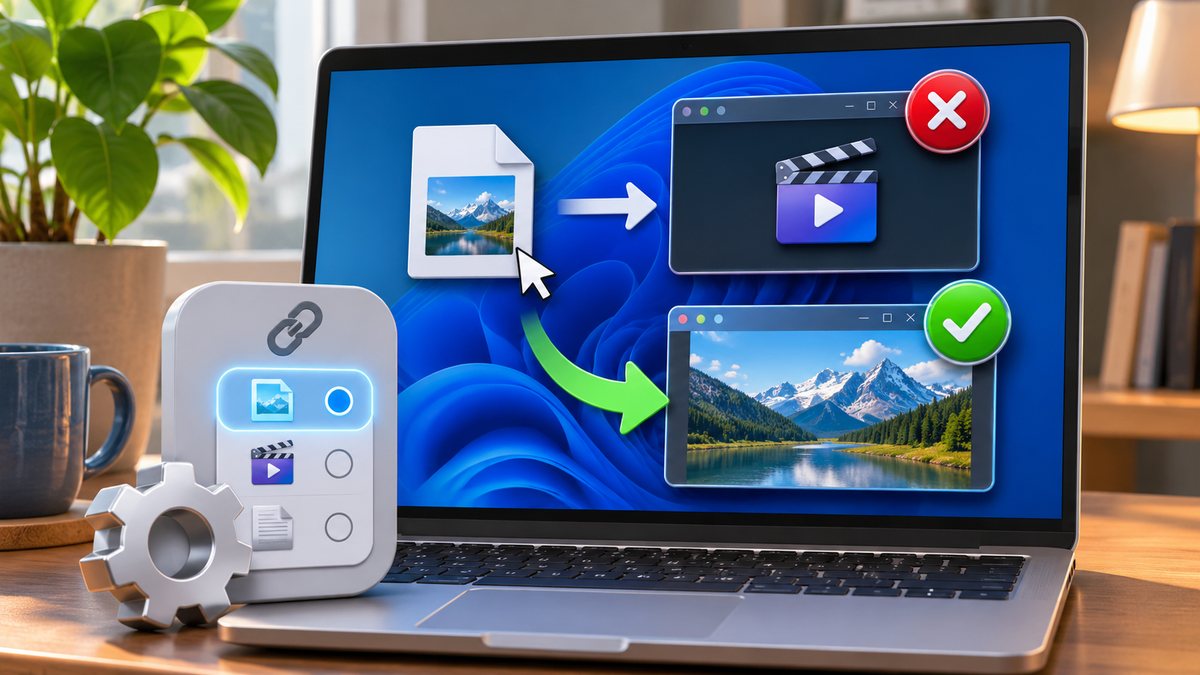
Windows chooses an application by file type, such as PDF, JPG or DOCX. A newly installed program, an accidental “Always” choice or a removed application can change that association. The file itself may be fine even when the wrong program starts. Identify the extension, set one trusted default, and avoid renaming the file merely to force another app.
Identify the real file type
In File Explorer, turn on file-name extensions from View, Show, File name extensions. A document called report.pdf should display its real ending. Do not change the extension unless you know the underlying format; renaming a .docx to .pdf does not convert the contents.
If an attachment has two endings, such as invoice.pdf.exe, do not open it. Scan it with Windows Security and verify the sender through another channel.
Choose Open with for one test
Right-click the file, select Open with, and choose a trusted installed application. Leave “Always use this app” unchecked for the first test. Confirm that the content renders correctly before making the choice permanent.
Use the application publisher’s official installer or Microsoft Store. A website that claims you need a special viewer for a familiar format may be trying to deliver unwanted software.
Change the default by file type
Open Settings, Apps, Default apps. Search for the extension or select the application, then assign the intended program. Microsoft documents default choices by file type, link type and application. Change only the affected association instead of resetting every default.
For browser links, check HTTP and HTTPS as well as the browser entry. For photos or PDFs, test a local non-sensitive file after the change.
Remove a broken or duplicate application carefully
If two editions of the same program appear, update the one you use and uninstall only the obsolete copy through Settings. Do not remove Microsoft system components or workplace software simply because its name is unfamiliar.
Our Windows default-printer guide covers a separate default that is managed under Printers & scanners.
Check whether the file is damaged
If the correct app opens but reports an invalid or corrupted file, download the item again from the original trusted source or restore a known backup. Try another file of the same type; if that works, the association is correct and the first file is likely the issue.
Do not upload confidential files to an unknown online converter. Use the producing application’s Export or Save As function when genuine conversion is needed.
Use resets only after focused checks
Save open work and record the current settings before making a broad change. Change one item at a time and test again, so you can tell which step mattered. Avoid registry cleaners, “PC repair” downloads and browser extensions promoted by pop-ups. They can change unrelated settings or introduce unwanted software.
On a work or school computer, default applications, cookies and sign-in policies may be managed. Ask the administrator before removing a profile, security product or organisation account. Back up important files and account recovery information before any reinstall or full reset.
When to get more help
If the problem returns after a restart, current official updates and the targeted checks above, collect the exact file type or website address, time, screenshots and affected user account. Contact the software publisher, website owner or device administrator through an official support channel. Never send passwords, session cookies, recovery codes or private documents as troubleshooting evidence.
Official references
Reviewed: 19 October 2026. Menu names can vary by Windows or browser version and organisation policy.