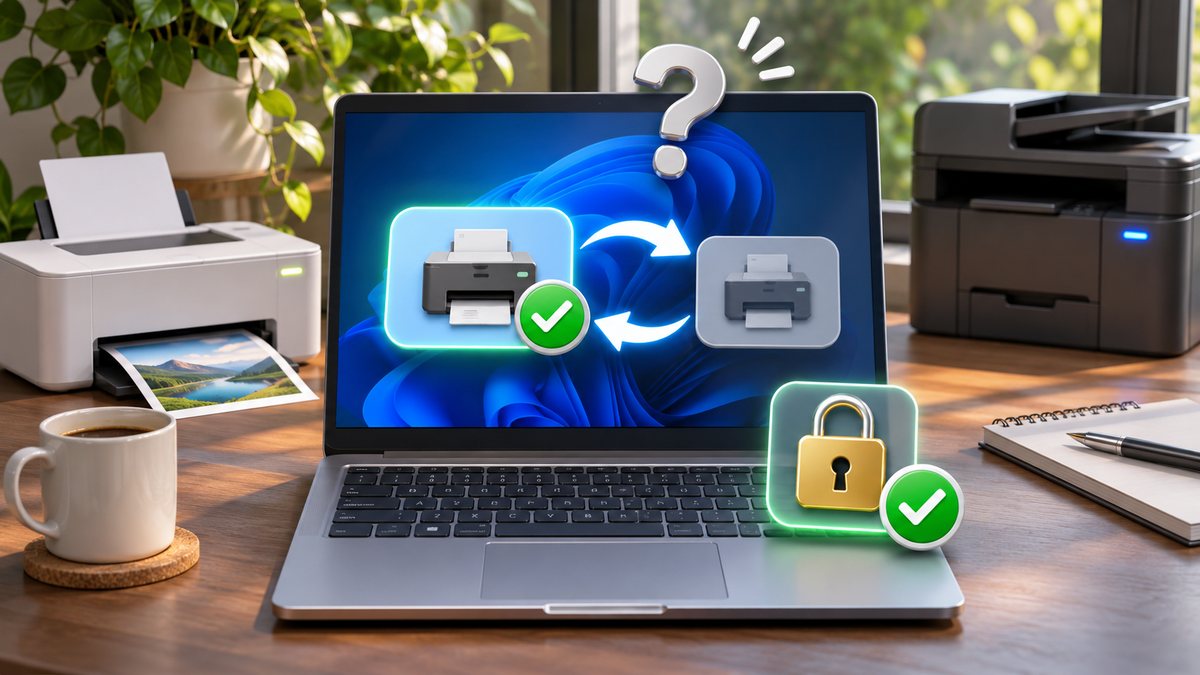
Windows usually changes the apparent default printer for one of two reasons: the system is allowed to manage the default based on recent use, or the application has saved its own printer choice. A stale offline printer, a work profile or a newly installed device can add confusion. Check the Windows setting first, then confirm what the affected app is actually using.
Confirm whether Windows or one app is changing it
Open Settings, Bluetooth & devices, Printers & scanners and note which printer Windows marks as default. Then open the print dialog in two ordinary apps, such as Notepad and a browser. If Settings stays correct but only one app selects another device, the saved choice belongs to that app rather than to Windows as a whole.
Print to PDF is useful for a no-paper test, but do not leave it selected if you expect a physical printout. Also distinguish similarly named office printers by their location or queue name.
Turn off automatic default-printer management
In Printers & scanners, clear Let Windows manage my default printer if it is enabled. Microsoft explains that this feature can make the most recently used printer at the current location the default. Select the intended printer, choose its settings, and use Set as default.
Return to the printer list and confirm the Default label. If the button is missing, automatic management may still be on or an organisation policy may control the setting.
Remove an obsolete duplicate carefully
Old USB, Wi-Fi and renamed queues can point to the same physical machine. Print a test page from the working queue, then remove only a duplicate that is clearly offline or obsolete. Our printer offline guide explains connection checks before deletion.
Do not remove a managed print queue on a work computer without asking IT. Re-adding it may require a company portal, print server or administrator credentials.
Check the application print dialog
Applications may remember the last printer independently. In the affected app, choose the correct queue and review paper size, orientation and output destination. Close the app normally after a successful print so it can save the preference.
For a browser, check both the browser preview and the system print dialog. A site cannot permanently change the Windows default, but a browser can preserve its own recent destination.
Restart the print path and use official updates
Restart the computer and the printer, then reconnect using the manufacturer-approved USB or network method. Install printer updates through Windows Update or the printer maker’s official support page. Avoid generic driver packages and utilities from download sites.
If the queue changes only after signing in to a work VPN or office network, capture the timing and ask the administrator whether a login script or policy assigns printers.
Before you make a major change
Record the device model, operating-system version and the exact time the problem appears. Save open work, use the normal restart command, and change one setting at a time. That makes it possible to undo a change and identify the actual cause. Avoid registry cleaners, driver-download sites and applications that promise an instant repair; they can introduce unwanted software or replace a correct driver with an incompatible one.
If the device belongs to an employer or school, stop before removing profiles, security software or management settings. Those controls may be required by policy. On a personal device, back up important files before a reset or reinstall. A factory reset is a last resort, not a first troubleshooting step.
When to contact support
Contact the device maker, operating-system provider or network administrator when the same fault survives a normal restart, official updates and the focused checks above. Include screenshots, error wording and the result of a test with another trusted device or network. Seek hardware service when ports are loose, a battery is swollen, the device is unusually hot, or the problem also appears outside the operating system.
Official references
- Microsoft Support: Set a default printer in Windows
- Microsoft Support: Fix printer connection and printing problems
Reviewed: 1 October 2026. Menu names and supported features can vary by device, software version, region and organisation policy.