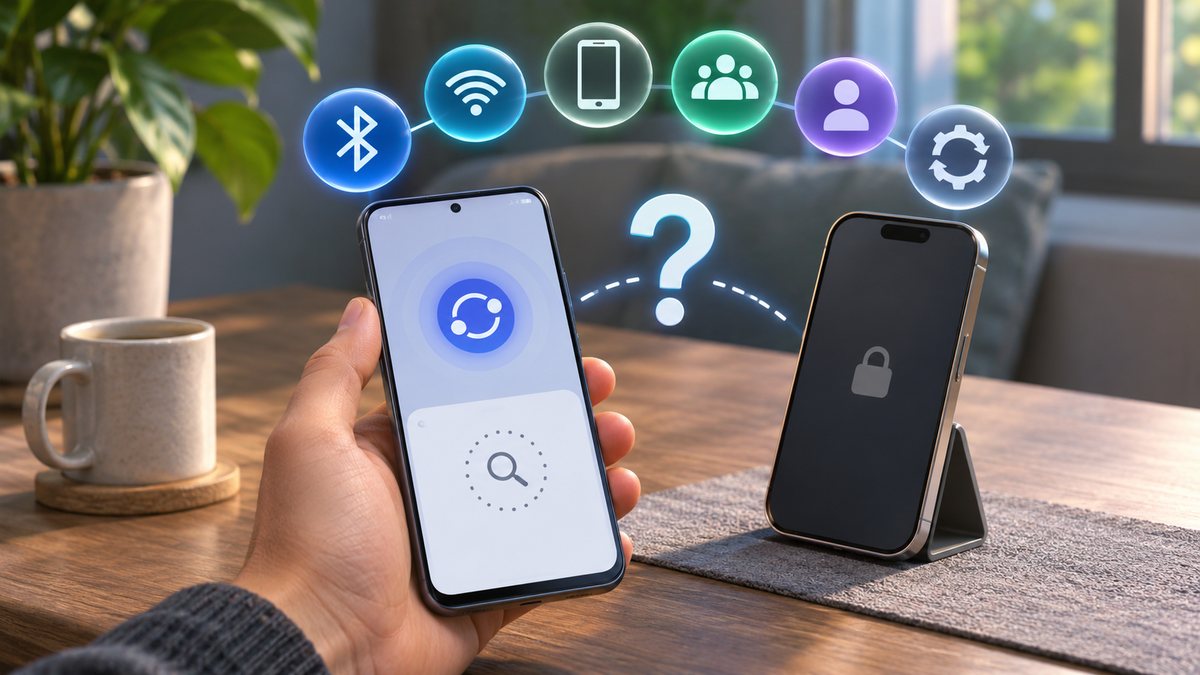
Quick Share uses nearby radios and visibility settings to discover a receiving device. Both devices must be awake, close enough, and configured to be visible to the sender. The feature name and available sharing audiences can differ by Android version and by the Windows companion application.
Prepare both devices for discovery
Unlock both devices, turn on Bluetooth and Wi-Fi, and place them within a few metres. Open Quick Share on the receiving device and keep its screen awake during the test. Airplane mode, battery-saving restrictions or a disabled radio can stop discovery.
Do not leave visibility open to everyone longer than needed. Return to Contacts or Your devices after the transfer.
Review who can share with you
Open Quick Share settings and check the receiving audience. Google describes choices such as your devices, contacts or everyone for a limited period, depending on version. For your own signed-in devices, confirm that both use the expected Google Account.
For a transfer from someone else, verify their identity in person and compare the sender name shown on screen before accepting.
Check the Windows receiver
For Android-to-Windows sharing, install Quick Share only from Google’s official download page and confirm that the PC meets its stated requirements. Open the app, sign in if appropriate and choose a receiving visibility.
Company PCs may block Bluetooth, Wi-Fi Direct or the companion app. Ask IT rather than bypassing those controls.
Restart radios and clear a single failed transfer
Cancel the pending transfer, toggle Bluetooth and Wi-Fi off and on, then reopen Quick Share. Restart both devices if discovery still fails. Try one small, non-sensitive file to separate discovery from a large-file or storage issue.
If ordinary Bluetooth devices also disappear, address that radio problem first. Do not install a “sharing booster” or unofficial APK.
Share safely and verify the destination
Preview the filename and sender before accepting. Open received files only when expected, scan documents according to workplace policy, and delete suspicious packages. Quick Share does not make an unknown file trustworthy.
For iPhone-to-iPhone transfers, Apple AirDrop is a different system; our AirDrop waiting guide covers that platform.
Before you make a major change
Record the device model, operating-system version and the exact time the problem appears. Save open work, use the normal restart command, and change one setting at a time. That makes it possible to undo a change and identify the actual cause. Avoid registry cleaners, driver-download sites and applications that promise an instant repair; they can introduce unwanted software or replace a correct driver with an incompatible one.
If the device belongs to an employer or school, stop before removing profiles, security software or management settings. Those controls may be required by policy. On a personal device, back up important files before a reset or reinstall. A factory reset is a last resort, not a first troubleshooting step.
When to contact support
Contact the device maker, operating-system provider or network administrator when the same fault survives a normal restart, official updates and the focused checks above. Include screenshots, error wording and the result of a test with another trusted device or network. Seek hardware service when ports are loose, a battery is swollen, the device is unusually hot, or the problem also appears outside the operating system.
Official references
Reviewed: 18 October 2026. Menu names and supported features can vary by device, software version, region and organisation policy.