Short answer: many microwave ovens create radio-frequency noise near the 2.4 GHz Wi-Fi band. If the slowdown happens only while the oven is running, move the router and device away from the kitchen, use 5 GHz or 6 GHz on compatible equipment, and keep the microwave door and seals in good condition.
Why a microwave can affect Wi-Fi
Wi-Fi and household appliances do not need to be connected to interfere with each other. The 2.4 GHz band is shared by Wi-Fi, Bluetooth, some cordless devices, baby monitors, and noise from microwave ovens. A weak Wi-Fi link near the kitchen is more likely to be overwhelmed than a strong link close to the router.
The 5 GHz and 6 GHz bands use different frequencies, so they are usually better choices for this particular interference. Their trade-off is shorter range and weaker penetration through thick walls. Google’s official guidance notes both the microwave risk and the different speed and range behaviour of Wi-Fi bands.
Confirm the microwave is really the trigger
- Stand in the usual problem area and run a speed test with the microwave off.
- Repeat the same test while heating a cup of water for about one minute. Never run an empty microwave.
- Check whether only 2.4 GHz devices slow down or disconnect.
- Repeat closer to the router without moving the microwave.
Use the same device, server, and test location. If every device is slow even with the oven off, investigate the internet line, router load, or outage instead.
Reduce the interference safely
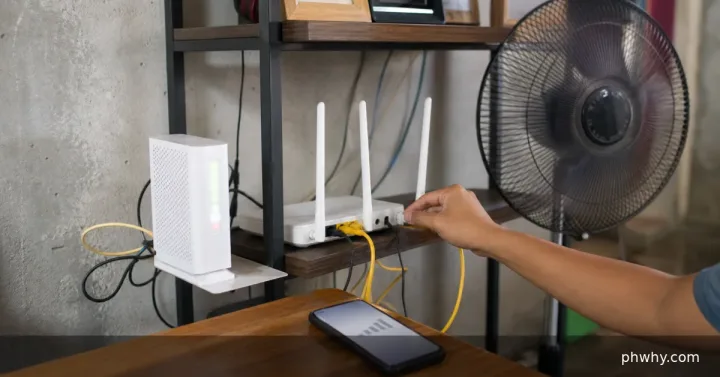
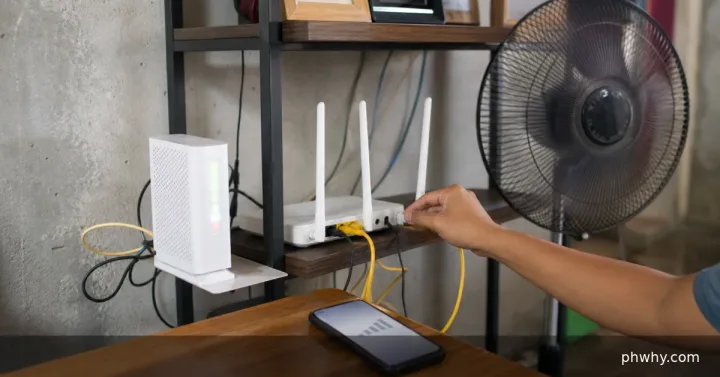
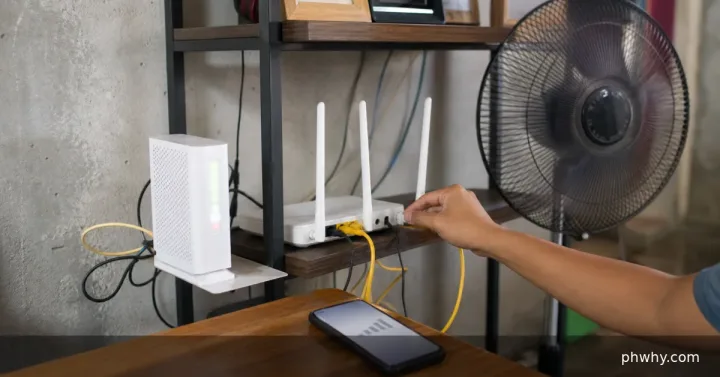
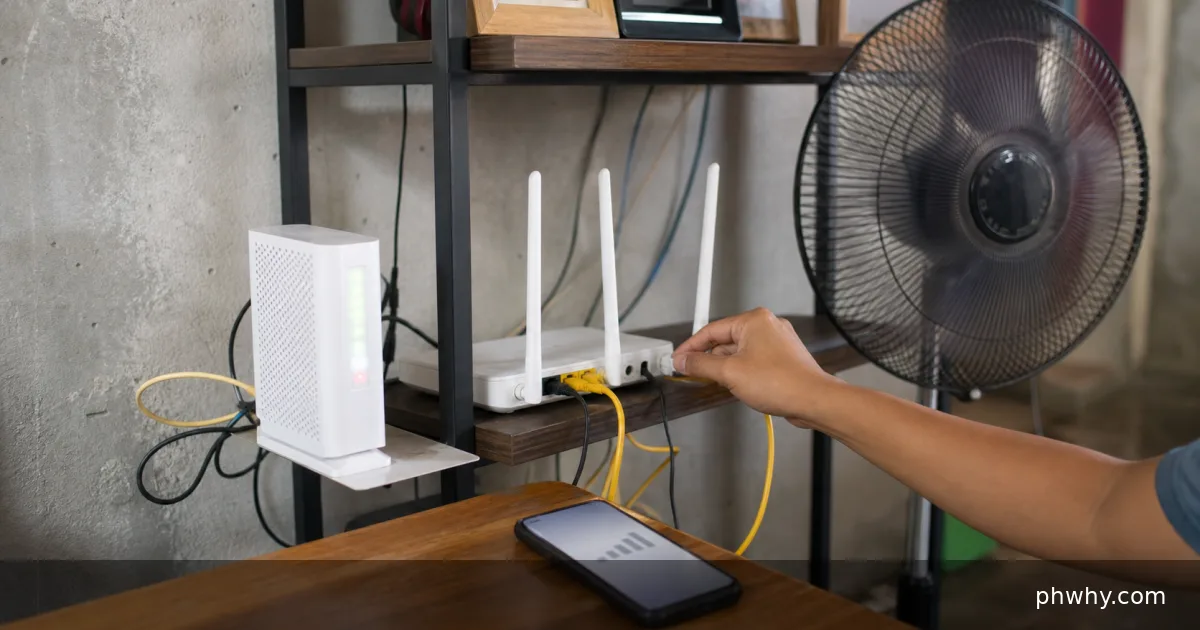
Move the router out of the kitchen and away from the microwave, refrigerator, television, cordless-phone base, and metal cabinets. Even one or two metres can help. Place the router in an open, central, elevated position rather than inside a cabinet or behind an appliance.
Connect laptops, newer phones, and streaming devices to 5 GHz or 6 GHz when coverage is strong. Leave 2.4 GHz for older or long-range smart devices. If your router uses one network name for all bands, it may choose automatically; do not split bands unless you understand the trade-offs and can restore the old settings.
Check channel and router settings
Start with automatic channel selection. If your router exposes manual 2.4 GHz channels, use the manufacturer or ISP guidance; nearby networks matter as much as the microwave. Avoid random channel changes during working hours because they disconnect devices. Update router firmware and restart only through the documented interface.
The related PHWhy guide on reducing Wi-Fi interference covers neighbours’ networks, walls, and placement in more detail.
How to verify the improvement
Repeat the paired off/on test at the same location. Check video playback, a call, and local connection stability, not only peak speed. A successful fix means the microwave no longer causes a large repeatable drop. Keep a note of which band the test device used.
If moving to 5 GHz solves the problem but coverage becomes weak in distant rooms, adjust router placement or consider a properly placed mesh point. Do not put a mesh point beside the microwave.
When to seek official help
Stop using the microwave and contact its manufacturer or a qualified technician if the door is bent, the seal is damaged, it sparks, or it behaves abnormally. Do not open or repair a microwave yourself; high-voltage components can remain dangerous. Contact the router maker or ISP if band selection is unavailable or the connection drops even when the microwave is off.
Philippines-specific tips
Concrete walls, metal roofing, compact kitchens, and neighbouring routers in condominiums can compound interference. During brownouts, wait for the modem and router to finish restarting before testing. Use only approved power protection and never place networking equipment where heat, grease, or moisture can reach it.