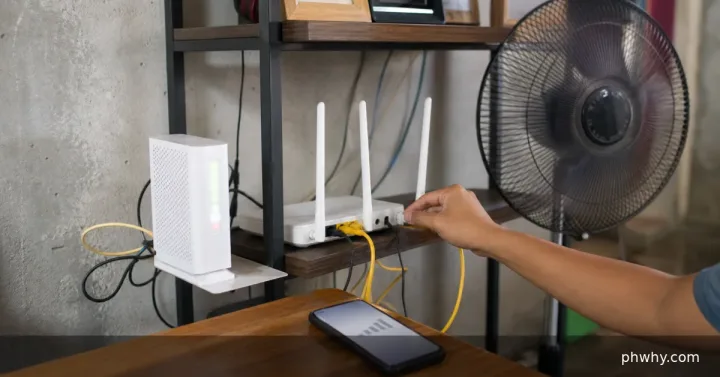
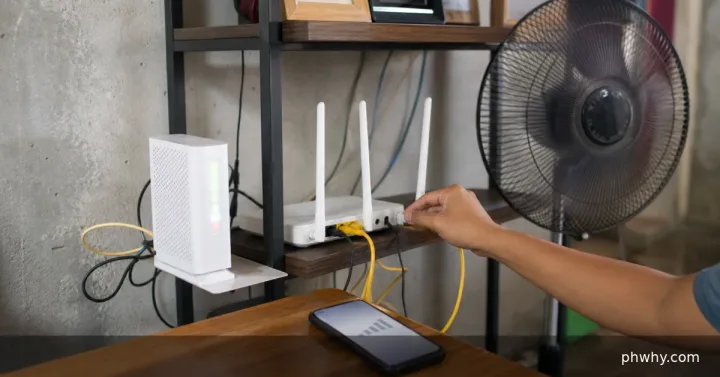
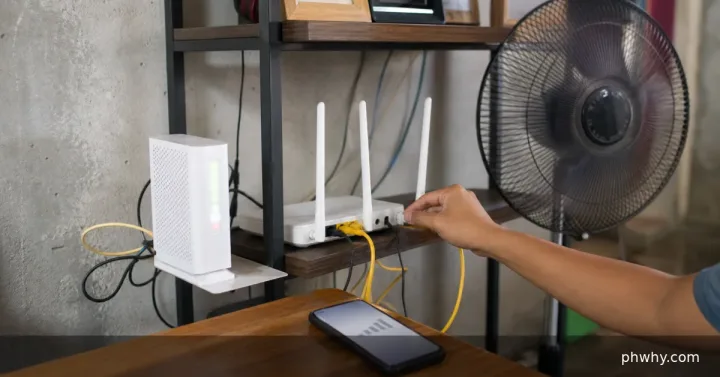
The WPS button starts a short pairing window so a compatible device can join the Wi-Fi network without manually entering the full password. It is convenient for printers and older smart devices, but it should not be confused with the router reset button.
Check what the button actually is
- Look for a WPS label or the two-arrow pairing symbol.
- Do not press a recessed Reset button; that can erase ISP and Wi-Fi settings.
- Open the router administration page from the local network and check whether WPS is enabled.
Use WPS in the safest order
- Start from the device setup screen and choose its WPS or push-button connection option.
- Press the router WPS button briefly, following the manufacturer timing.
- Wait for the device to confirm connection, then test normal internet access.
- Return to the router settings and turn WPS off if it is no longer required.
Menu names and indicator lights vary by router. If the device supports normal password entry or a trusted manufacturer app, either method may be easier to audit later.
How to confirm the connection
Check the router client list for the expected device name or hardware address. Confirm that no unknown device appeared during the pairing window.
What not to do
- Do not leave WPS PIN pairing enabled indefinitely.
- Do not share router administration credentials with a device installer.
- Do not press buttons at random when the ISP configuration is not backed up.
When to contact support
Ask the router maker or ISP for the model-specific instructions if WPS and Reset share one button, the control is disabled by managed firmware, or the router loses settings after a short press.
For more step-by-step help, browse the PHWhy topic hubs or search for the exact router model.