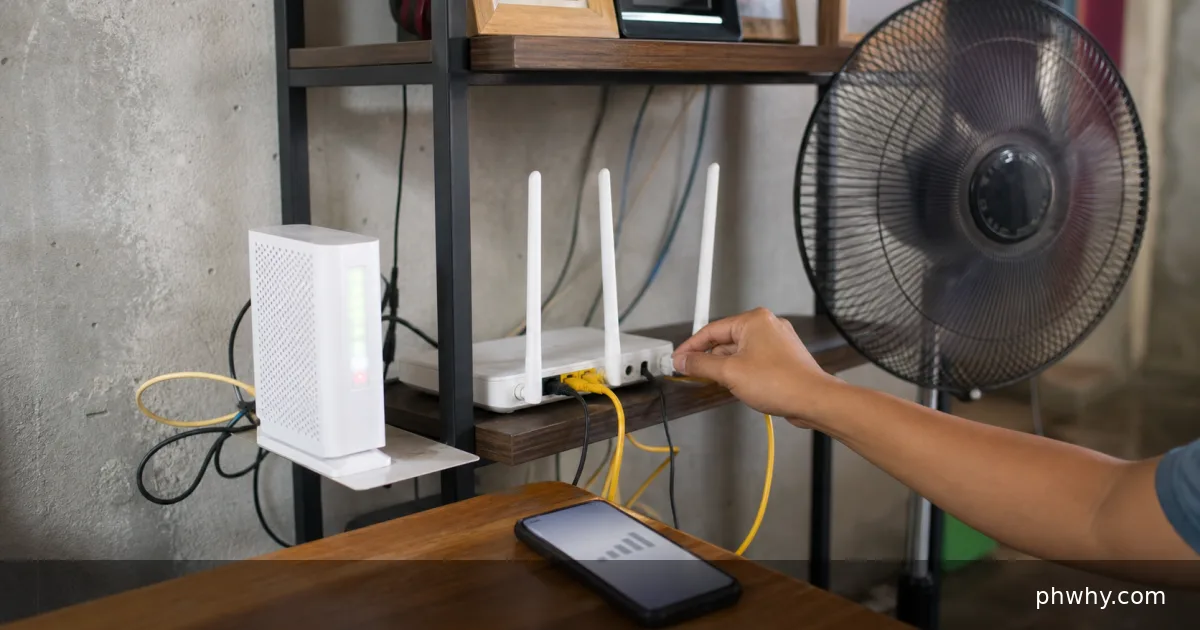
Quick answer: Use Ethernet if possible, ping the router and a reliable public address separately, and record loss, latency, time, and router lights.
Compare a wired test to the router, a test to the first ISP hop, and tests on more than one device and time period. Start with the checks below and change one thing at a time. That preserves evidence and makes it easier to reverse a change that does not help.
Why this happens
The symptom usually comes from one of several layers: the device or app, its account settings, the local connection, or the service behind it. The most useful clues are when the problem began, whether it affects another device, and whether it follows one network or account.
- Loss to the router indicates local Wi-Fi, cable, port, or router trouble.
- A clean router test with loss beyond it suggests the modem, line, or ISP path.
- Only one device failing points to its adapter, driver, or software.
- Only one game server failing may be remote routing or service load.
Fix it in the safest order
- Pause backups, downloads, VPNs, and other heavy traffic.
- Run repeated pings to the router address for several minutes.
- Run the same test to a reliable public IP and compare results.
- Repeat over Ethernet and on a second device.
- Save timestamps, traceroute results, and modem signal or event data before contacting the ISP.
After each step, repeat the exact action that failed. Avoid changing several settings together; otherwise a temporary recovery can look like a permanent fix.
How to confirm the problem is fixed
At least two test windows should show where loss begins; a healthy local path should have essentially no sustained loss to the router.
Common mistakes to avoid
- Do not publish your public IP or account number in a forum.
- Do not rely on one five-packet test.
- Do not factory-reset the router before collecting evidence.
FAQ
Can a speed test miss packet loss?
Yes. A speed test can report high throughput while short bursts of loss or jitter still disrupt games, calls, and remote desktop sessions.
Will these steps erase my data?
The diagnostic steps do not require a factory reset. Back up important files and recovery codes before reinstalling an app, clearing app storage, resetting a router, or changing an account recovery method.
Related PHWhy guides
Browse the Internet & Wi-Fi guides. You may also need Test Wi-Fi packet loss or Fix a DNS error.