Short answer: your phone can see the Wi-Fi network but is not receiving a usable local address from the router. Restart the phone, forget and rejoin the correct network, then restart the router without factory-resetting it. Test another device on the same Wi-Fi and test your phone on another network to identify which side is failing.
What “Obtaining IP address” means
After your phone accepts a Wi-Fi password, the router normally gives it a local IP address through DHCP. If that exchange does not finish, Android may keep showing “Obtaining IP address,” “Connecting,” or a saved-network message. This is different from being connected to Wi-Fi with no internet: the phone has not completed the local connection yet.
Common causes include a temporary phone or router error, a stale saved network profile, weak signal, a full router address pool, access-control settings, or a router that did not recover cleanly after a brownout. The message alone does not prove that your ISP line is down.
Start with safe phone checks
- Move near the router and confirm you selected the correct network name.
- Turn Wi-Fi off, wait ten seconds, and turn it on again.
- Turn Airplane mode on for ten seconds, turn it off, then retry Wi-Fi.
- Restart the phone.
- Open the saved network details, choose Forget, and reconnect with the current password.
Forgetting the network removes its saved password and connection settings, so have the password ready. Do not reset the whole phone. Google’s Android connection guidance recommends simple restarts and switching connection types before more disruptive steps.
Test the phone and network separately
Connect another phone or laptop to the same Wi-Fi. If every device fails, focus on the router or ISP. If only your Android phone fails, connect it briefly to a trusted hotspot or another known-good Wi-Fi network. A successful connection elsewhere points back to the original router’s settings or capacity.
This two-way test is faster than changing random settings. Our guide on why one device cannot connect to Wi-Fi explains the same isolation method in more detail.
Restart the router without erasing it
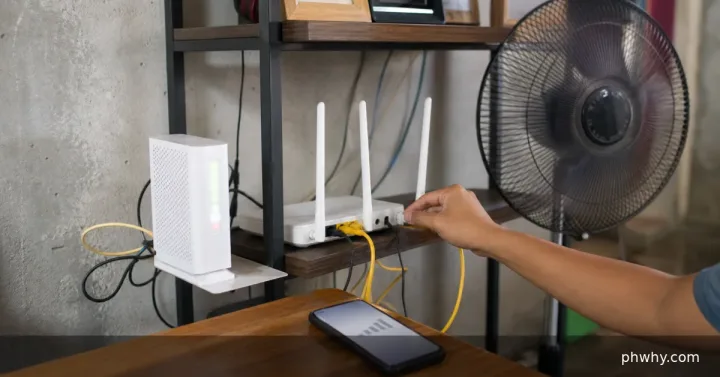
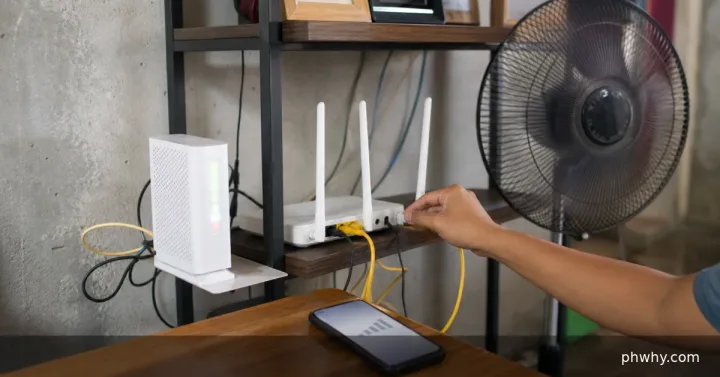
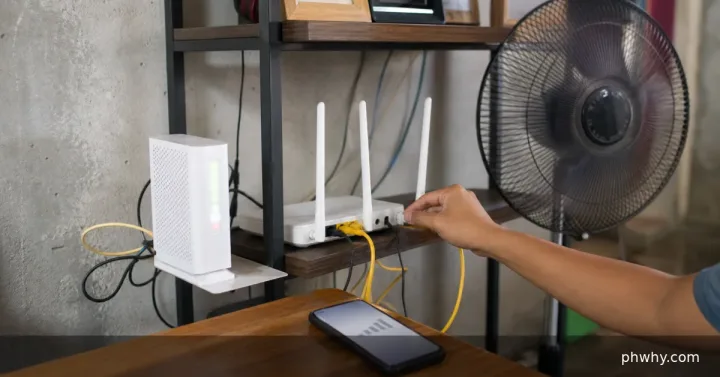
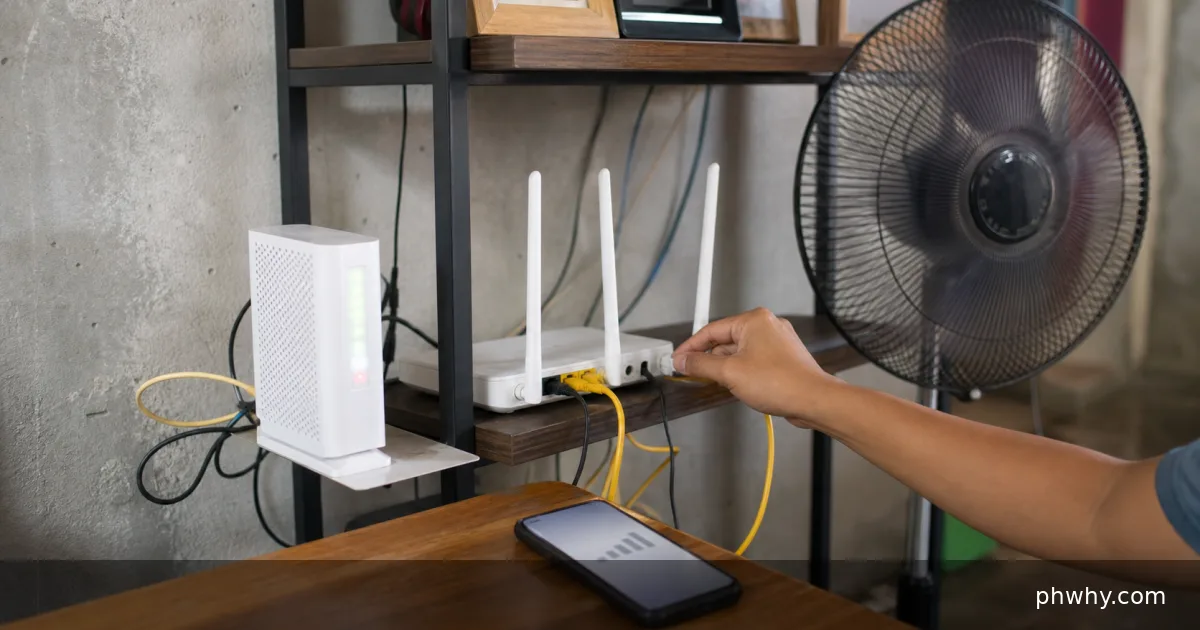
Unplug the router’s power, wait about 30 seconds, reconnect it, and allow several minutes for all normal lights to return. If you use a separate fibre modem or optical network terminal, follow your ISP’s normal restart order. Do not press the recessed Reset button; a factory reset can erase the provider configuration and Wi-Fi name.
After a Philippine power interruption, wait until power is stable before cycling equipment. If the router repeatedly freezes after brief voltage drops, use an appropriate surge protector or UPS recommended for networking equipment and ask the ISP to inspect its power adaptor.
Check router limits only if you manage the network
Log in only through the router’s official local address and documentation. Check whether the device list is full, DHCP is enabled, the address pool has free entries, and your phone is not blocked by an allowlist, parental control, or MAC filter. If Android uses a randomised MAC address and the router allows only registered devices, either update the approved entry or use the device MAC for that trusted home network.
Change one setting at a time and record the original value. Do not disable Wi-Fi security or use an open network as a permanent fix. If the router is supplied by PLDT, Globe, Converge, DITO, or another ISP and the settings are locked, contact the provider instead of attempting unsupported firmware changes.
Use network reset only as a later step
If the phone fails on several known-good networks, Android’s network-reset option can clear saved Wi-Fi, mobile-network, and Bluetooth settings. Menu names vary by manufacturer. Back up or note saved connections first, then follow the phone maker’s official instructions. A network reset is not the same as a factory data reset and should not erase photos or apps, but it will require reconnecting accessories and networks.
How to verify the fix
The Wi-Fi status should change from “Obtaining IP address” to Connected. Open the network details and confirm that an IP address and gateway appear. Load two unrelated HTTPS websites, then turn Wi-Fi off and on once to confirm automatic reconnection. If it connects but pages still fail, troubleshoot the internet service rather than DHCP.
When to contact official support
Call your ISP if all devices fail, router warning lights remain abnormal, or the problem follows an outage. Contact the phone manufacturer if the phone cannot join any known-good Wi-Fi after updates and a network reset. Tell support which networks were tested, whether other devices connect, and the exact Android message; that evidence prevents unnecessary resets.