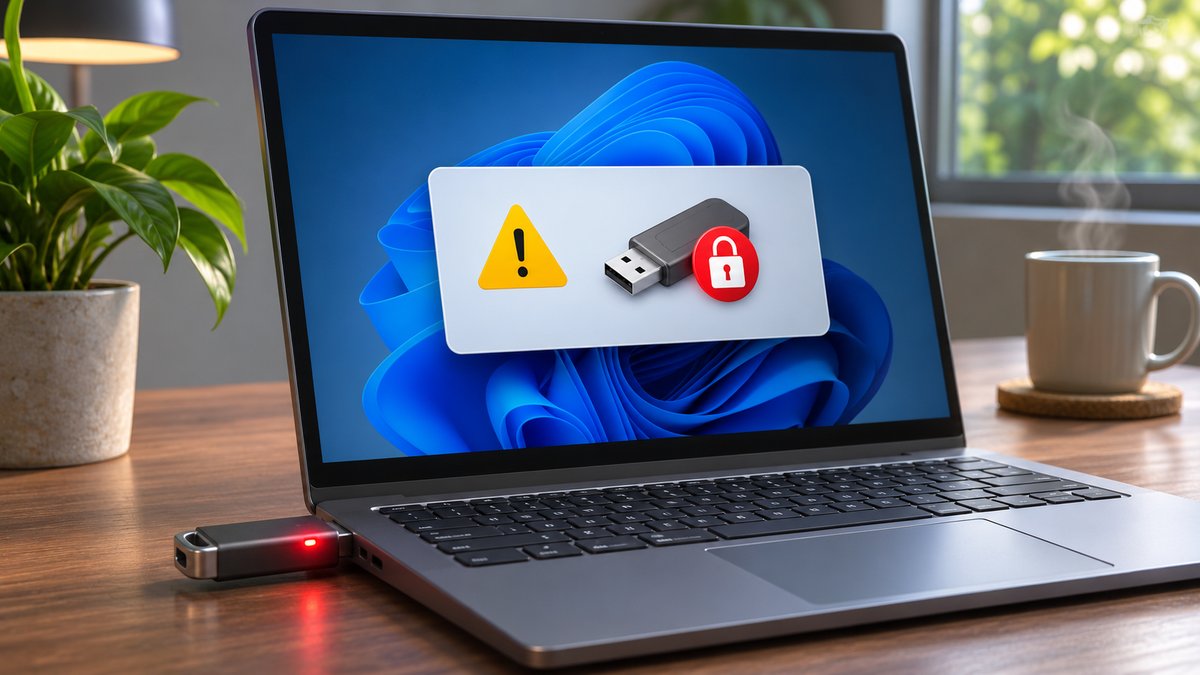
You may finish copying files, close the document, and still see a Windows message that your USB drive is in use. The warning is a reason to pause: an open file window, a background sync task, or an application that recently accessed the drive may still be working. Do not pull the drive out while a transfer or save is active.
Check the simple causes first
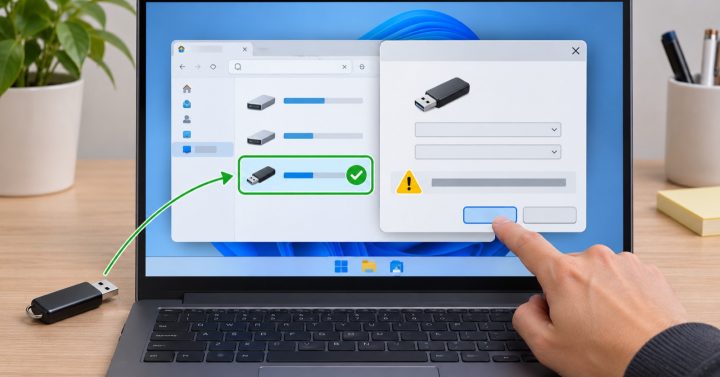
Close any File Explorer windows showing the drive. Exit programs that opened files from it, including photo editors, media players, backup utilities, and document apps. If a cloud or backup tool is copying from the drive, wait for its activity to finish. Check that the drive’s activity light, if it has one, has settled. Then use the Safely Remove Hardware icon in the Windows notification area and select the correct device. Wait for Windows to say it is safe to remove.
If Windows still refuses
Save your other work, close remaining applications, and try ejecting again. If the warning continues, restart Windows with the drive connected, then eject it before reopening apps. Avoid repeatedly yanking the device or forcing a shutdown during a write. If the same drive regularly has this problem, try a different USB port and check the drive for errors after making a backup. Microsoft documents the safe removal steps for Windows at Microsoft Support.
What “in use” can mean
A file may remain open in a photo editor, media player, backup tool, antivirus scan or even a Finder/File Explorer preview. Close the apps that used the drive, wait for copy or sync activity to stop, and try ejecting again. If safe, sign out or restart Windows with the drive connected, then eject before opening other apps. Microsoft’s Safely Remove Hardware guide explains the tray icon and the “Safe To Remove Hardware” confirmation. Wait for that confirmation before unplugging.
Can I force removal?
Avoid unplugging while a write or backup is in progress; this can corrupt the current file or file system. If Windows repeatedly reports the drive is busy, record which apps were open and test a different USB port after a clean restart. Back up important contents before running repair tools. Source check: 7 November 2026.