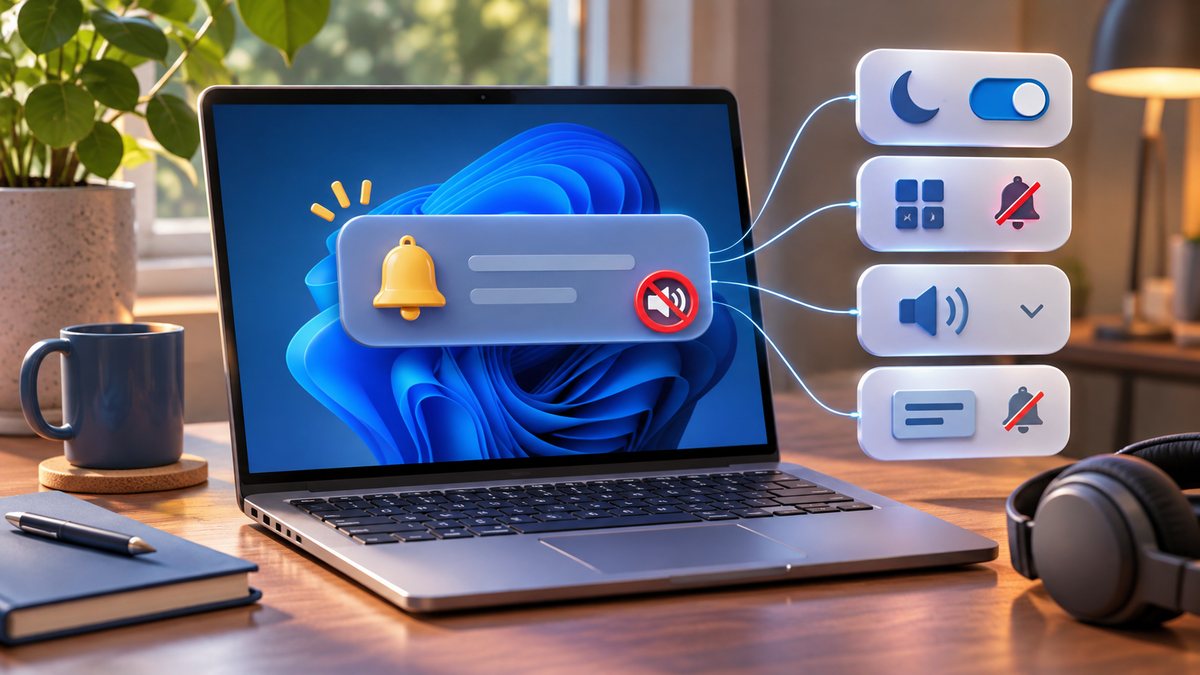
Windows can display a notification banner without playing a sound. Do Not Disturb, per-app notification choices, an incorrect speaker output, muted system sounds or a focus rule may be responsible. Confirm whether all sounds are missing or only one application is silent before changing settings.
Test ordinary audio first
Play a trusted local sound or use the speaker test in Settings. If no audio works, select the correct output device and check the system volume. A dock, monitor or Bluetooth headset can become the active output even when its volume is low.
Our Windows microphone guide covers input problems; notification sounds use the separate output path.
Review Notifications and Do Not Disturb
Open Settings, System, Notifications. Confirm that Notifications is enabled and inspect Do Not Disturb. Microsoft says Do Not Disturb can send notices directly to the notification centre while allowing selected priority items.
Review any automatic rules for certain times, full-screen apps or duplicated displays. Turn off one rule temporarily for a controlled test instead of disabling every focus feature.
Check the affected application
In the app list under Notifications, select the affected app and enable notification banners and sound if those choices are available. Some apps also have an internal notification setting, so compare the Windows control with the app’s own preferences.
Send a legitimate test notification from the service. Do not use websites that demand browser notification permission merely to “test” Windows sounds.
Inspect the volume mixer and sound scheme
Open the volume mixer and confirm that System Sounds and the affected app are not muted. In advanced sound settings, the Windows sound scheme may assign no sound to an event, although modern app notifications are often controlled through the app setting.
Set a standard Windows scheme for testing. Avoid downloading random sound packs or replacing system files.
Restart and update the responsible app
Close the app completely, restart Windows and test again. Install updates from Microsoft Store, the app’s built-in updater or its official website. If one user account alone is affected, note that result for support rather than deleting the profile.
On a work PC, notification rules may be managed. Ask IT before changing registry or policy settings.
Before you make a major change
Record the device model, operating-system version and the exact time the problem appears. Save open work, use the normal restart command, and change one setting at a time. That makes it possible to undo a change and identify the actual cause. Avoid registry cleaners, driver-download sites and applications that promise an instant repair; they can introduce unwanted software or replace a correct driver with an incompatible one.
If the device belongs to an employer or school, stop before removing profiles, security software or management settings. Those controls may be required by policy. On a personal device, back up important files before a reset or reinstall. A factory reset is a last resort, not a first troubleshooting step.
When to contact support
Contact the device maker, operating-system provider or network administrator when the same fault survives a normal restart, official updates and the focused checks above. Include screenshots, error wording and the result of a test with another trusted device or network. Seek hardware service when ports are loose, a battery is swollen, the device is unusually hot, or the problem also appears outside the operating system.
Official references
- Microsoft Support: Notifications and Do Not Disturb in Windows
- Microsoft Support: Fix sound or audio problems in Windows
Reviewed: 11 October 2026. Menu names and supported features can vary by device, software version, region and organisation policy.