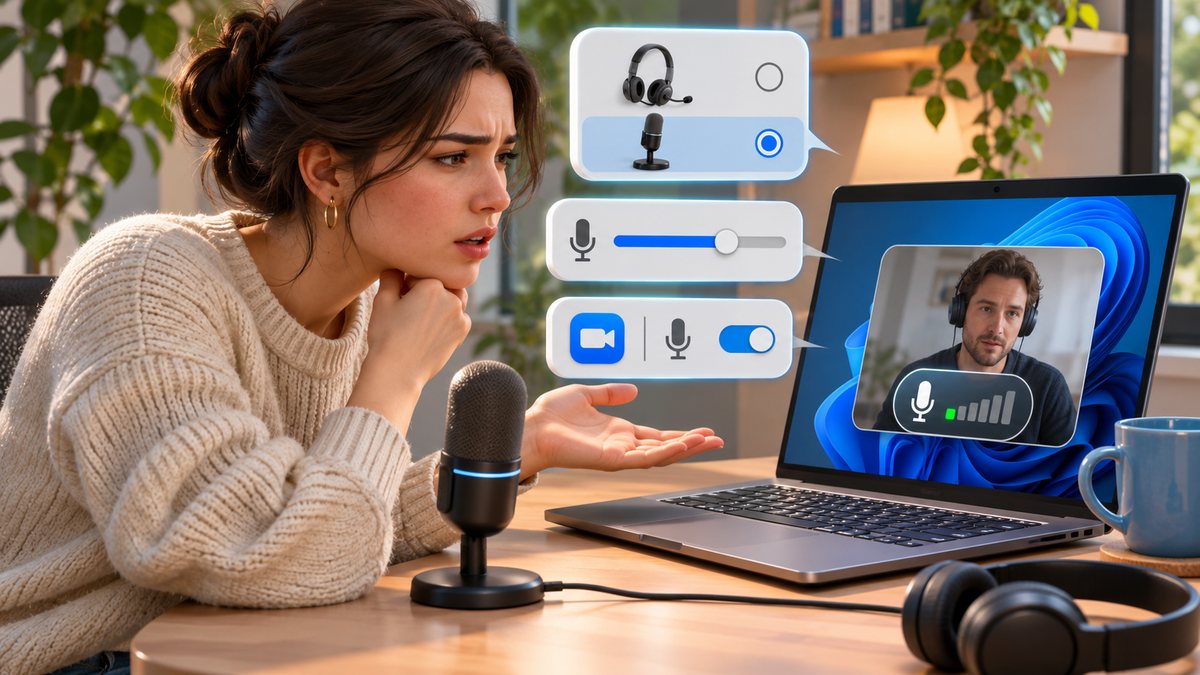
A quiet microphone in a Windows call can be caused by the wrong input device, a low input level, physical placement or a setting inside the calling app. Before changing anything, record which microphone the app is using. A laptop may have a built-in microphone even when a headset is connected.
Test one setting at a time
- Check that the headset plug or USB connector is seated properly, and that a physical mute switch is off. Move the microphone near your mouth without touching it.
- Open Windows Settings, then System, Sound and Input. Select the microphone you actually intend to use. Start a microphone test, speak at a normal level, stop the test and play the result back.
- If the recording is too soft, raise the input volume gradually and test again. Avoid setting it so high that speech distorts or background noise dominates.
- Open the calling app’s audio settings and choose the same microphone there. Check whether its automatic level or noise-suppression option changes the result. Try a local recording to separate an app problem from a device problem.
- If an app cannot hear the microphone at all, check Windows microphone permissions for that app before reinstalling a driver.
Microsoft documents the microphone test and input-volume controls at https://support.microsoft.com/en-us/windows/hardware/drivers/how-to-set-up-and-test-microphones-in-windows and permission checks at https://support.microsoft.com/en-us/windows/hardware/drivers/fix-microphone-problems . If a second microphone records normally on the same computer, inspect the original headset and cable. If both are quiet, note the Windows version and device model before contacting official support.