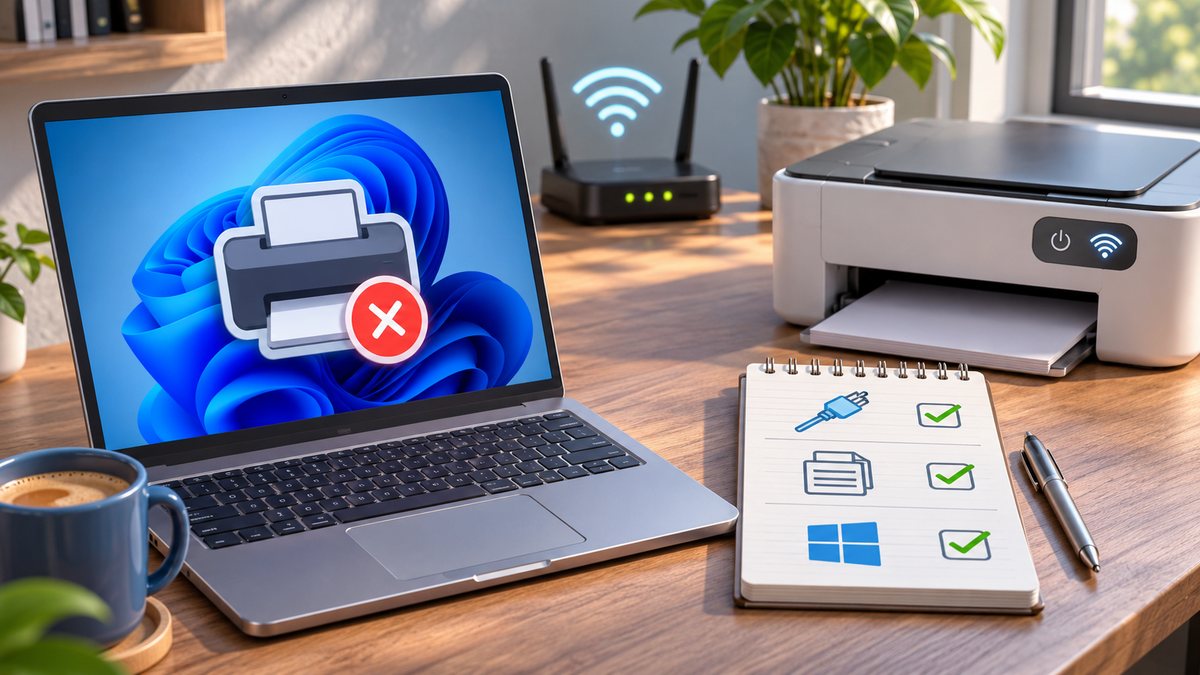
Quick answer: A Wi-Fi printer marked Offline in Windows may be powered on but disconnected from the network, stuck behind a print queue, or represented by an outdated printer entry. Start by confirming that the printer and PC can reach the same home network. Avoid a factory reset until the simpler checks fail.
Confirm the connection first
- Look at the printer’s own Wi-Fi indicator or network menu. If it can print a network status page, compare the network name with the one used by the Windows PC. After a router or password change, reconnect the printer to the current network using the manufacturer’s instructions.
- Make sure the PC is not on a guest network that separates local devices. If you use a VPN, briefly test printing with the VPN disconnected only if your organization permits it; some VPN configurations block local network access. Reconnect the VPN afterward.
- Turn the printer off, unplug it for about 30 seconds, then reconnect and restart it. Microsoft includes a power-cycle and same-Wi-Fi check in its offline printer troubleshooting guide.
Check the Windows printer entry
- Open Start → Settings → Bluetooth & devices → Printers & scanners in Windows 11. Select the intended printer and open its queue. If a job is stuck, cancel only jobs you no longer need, then send one small test page.
- If several copies of the printer appear, check which entry is current. Microsoft suggests setting the intended printer as default; if that control is missing, Let Windows manage my default printer may be enabled.
- On Windows 11, run the printer troubleshooter in the Get Help app if the printer remains Offline. If the queue itself will not process jobs, Microsoft’s guide also describes restarting the Print Spooler service. Save any pending work before clearing a queue.
What the result tells you
If a phone and another computer can print while only this Windows PC cannot, focus on its queue, printer entry, driver and local network settings. If no device can print, inspect the printer’s Wi-Fi connection and router first. Remove and add the printer again only after recording its network details; a factory reset may erase scan and wireless settings.
Related question
If the printer has never joined the network, start with our printer Wi-Fi setup guide. For a printer that is online but produces empty pages, see our blank-page checklist.