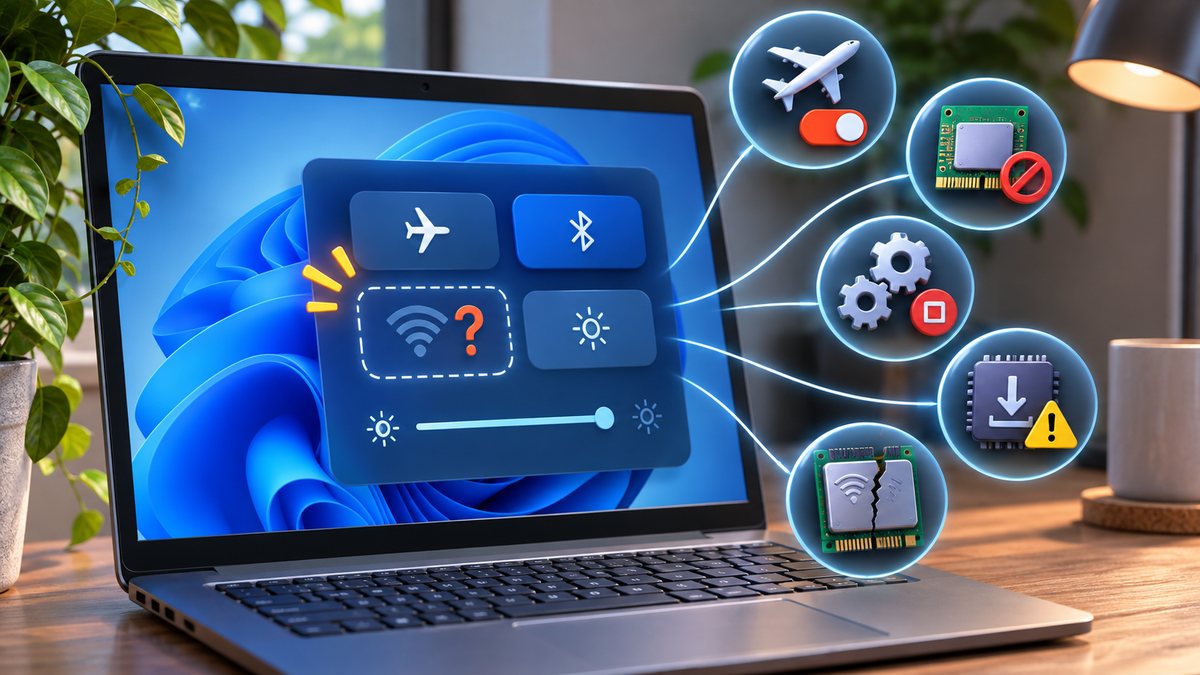
When the entire Wi-Fi control disappears, the issue is different from a wrong password or weak signal. Windows may have disabled the wireless adapter, lost its driver, stopped the WLAN service or stopped detecting the hardware. Use Ethernet or another trusted connection only if needed while you inspect the adapter.
Check the physical and quick controls
Turn Airplane mode off and use the laptop’s wireless key or hardware switch if it has one. Some function keys require Fn. Wait several seconds after changing it and reopen Quick Settings.
Do not repeatedly force the switch if it is jammed or broken. Physical damage needs service.
Look for the adapter in Device Manager
Open Device Manager and expand Network adapters. A disabled Wi-Fi adapter can be enabled from its context menu. A warning symbol or an Unknown device suggests a driver or hardware issue; record the exact name and code.
Do not remove every network adapter. VPN, virtual-machine and Ethernet entries are separate. Our hotspot visibility guide applies when Wi-Fi exists but only one network is missing.
Run the Windows network troubleshooter
Use the Network and Internet troubleshooter in Settings or Get Help. Follow the result that refers to the wireless adapter. Restart when requested and check whether the control returns.
A full Network reset reinstalls adapters and removes saved networking configuration, so leave it until targeted steps have failed and record VPN details first.
Install the exact official driver
Connect by Ethernet or download the wireless driver on another trusted device from the laptop manufacturer’s support page. Match the exact model and Windows version. Windows Update may also offer an approved driver.
Avoid driver-pack sites and utilities that identify hardware by advertising. They can install incompatible or unwanted software.
Separate a software problem from hardware
If the adapter appears after a cold restart but vanishes under load, note temperature and timing. If it never appears in Windows or the computer’s own diagnostics, the wireless card, antenna, firmware setting or motherboard may need service.
Do not open a laptop under warranty unless the manufacturer instructs you to. On a managed PC, ask IT before BIOS or firmware changes.
Before you make a major change
Record the device model, operating-system version and the exact time the problem appears. Save open work, use the normal restart command, and change one setting at a time. That makes it possible to undo a change and identify the actual cause. Avoid registry cleaners, driver-download sites and applications that promise an instant repair; they can introduce unwanted software or replace a correct driver with an incompatible one.
If the device belongs to an employer or school, stop before removing profiles, security software or management settings. Those controls may be required by policy. On a personal device, back up important files before a reset or reinstall. A factory reset is a last resort, not a first troubleshooting step.
When to contact support
Contact the device maker, operating-system provider or network administrator when the same fault survives a normal restart, official updates and the focused checks above. Include screenshots, error wording and the result of a test with another trusted device or network. Seek hardware service when ports are loose, a battery is swollen, the device is unusually hot, or the problem also appears outside the operating system.
Official references
- Microsoft Support: Fix Wi-Fi connection issues in Windows
- Microsoft Support: Setting up a wireless network in Windows
Reviewed: 17 October 2026. Menu names and supported features can vary by device, software version, region and organisation policy.