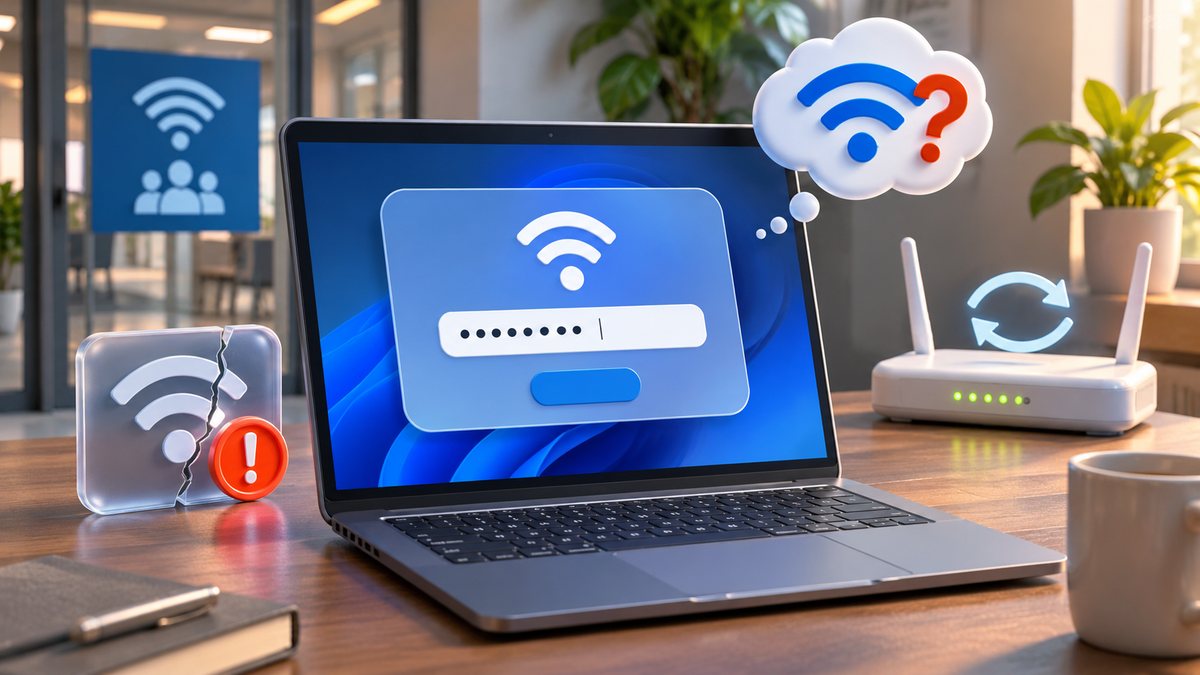
A laptop that asks for the same Wi-Fi password after every restart may have an outdated saved profile, a router whose security settings changed, or a network that uses a browser sign-in rather than a reusable Wi-Fi key. First confirm that the password is correct on another trusted device. Then rebuild only the affected connection instead of resetting every network setting.
Identify the kind of network
A home router normally uses a WPA2 or WPA3 password. Hotels, airports and cafés may connect first and then show a captive-portal page; completing that page is separate from saving the Wi-Fi key. Work and school networks can require a username, certificate or managed profile.
Do not enter an account password into a Wi-Fi prompt unless the organisation specifically documents that method. Check the network name carefully because look-alike hotspots can be malicious.
Forget only the affected profile
Open Settings, Network & internet, Wi-Fi, Manage known networks. Select the problem network and choose Forget. Reconnect from the available-network list and enter the verified key. Microsoft documents this as a standard step for a single problematic network.
Forgetting removes the saved profile on that laptop, not the router configuration. It is less disruptive than a full network reset, which can remove all remembered Wi-Fi networks and adapters.
Check whether the router identity changed
If a replacement router uses the old network name with a different security type, Windows can treat the saved details as inconsistent. Confirm the SSID, security mode and password on the router label or in the provider’s official app. Do not publish or send the key in a screenshot.
Restart the router using the provider’s normal power procedure only if other devices also have trouble. Our Windows hotspot guide covers a related case where the network is not visible at all.
Check date, time and managed sign-in
An incorrect clock can break certificate-based enterprise Wi-Fi. Set date, time and time zone automatically, then restart. On a managed laptop, verify that the work or school account remains connected and contact IT before deleting certificates.
A password manager can store the router key, but Windows itself should retain the Wi-Fi profile. Avoid third-party tools that claim to reveal all saved network passwords.
Update the adapter through trusted channels
Install Windows updates, including an optional network driver only when it is offered for the exact hardware. The laptop manufacturer’s support site is the other appropriate source. Restart after installation and test two shutdown/start cycles.
If only this laptop forgets every network, note the adapter model and event timing for support. If every device forgets or is rejected, inspect the router or provider service instead.
Before you make a major change
Record the device model, operating-system version and the exact time the problem appears. Save open work, use the normal restart command, and change one setting at a time. That makes it possible to undo a change and identify the actual cause. Avoid registry cleaners, driver-download sites and applications that promise an instant repair; they can introduce unwanted software or replace a correct driver with an incompatible one.
If the device belongs to an employer or school, stop before removing profiles, security software or management settings. Those controls may be required by policy. On a personal device, back up important files before a reset or reinstall. A factory reset is a last resort, not a first troubleshooting step.
When to contact support
Contact the device maker, operating-system provider or network administrator when the same fault survives a normal restart, official updates and the focused checks above. Include screenshots, error wording and the result of a test with another trusted device or network. Seek hardware service when ports are loose, a battery is swollen, the device is unusually hot, or the problem also appears outside the operating system.
Official references
- Microsoft Support: Connect to a Wi-Fi network in Windows
- Microsoft Support: Fix Wi-Fi connection issues in Windows
Reviewed: 9 October 2026. Menu names and supported features can vary by device, software version, region and organisation policy.