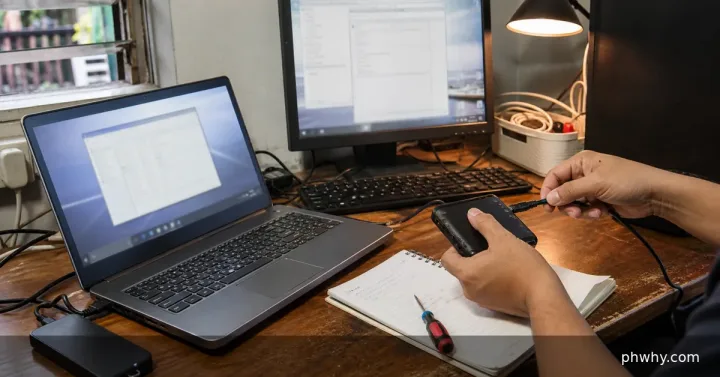
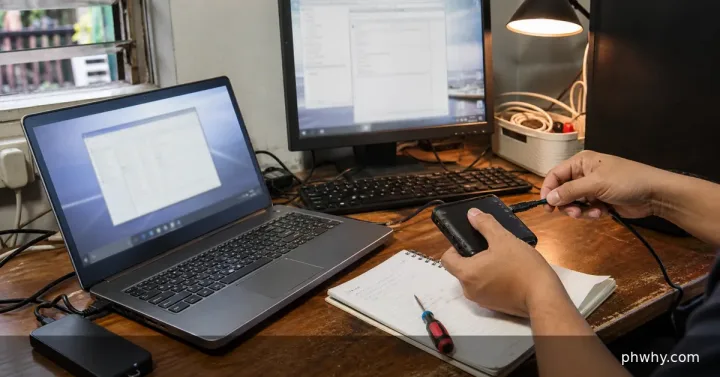
A fan runs to remove heat. Constant high speed may be caused by updates, browser tabs, background indexing, blocked vents, an unsuitable surface or aging cooling hardware.
Short answer: Check CPU usage, close the responsible task normally, move the laptop to a hard surface and install official updates.
Check the likely cause first
- Use Task Manager or Activity Monitor to identify sustained CPU or GPU use.
- Check whether the fan calms after startup tasks and updates finish.
- Inspect vents for blockage and note shutdowns, heat warnings or battery swelling.
Fix it in the safest order
- Save work and restart, then wait several minutes with only the system monitor open.
- Close or update the app using sustained resources instead of forcing random system processes to stop.
- Use the laptop on a hard, clean surface with all vents clear.
- Install firmware and graphics updates from the laptop or operating-system vendor.
Change one thing at a time and retest. That makes it easier to identify the cause and undo a setting if the result is worse.
How to confirm the fix
At idle, resource use and fan speed should fall after background work finishes; test again under one normal workload.
What not to do
- Do not spray liquid or spin fans with compressed air at extreme speed.
- Do not use firmware from an unofficial driver site.
When to contact support
Shut down and seek service for swelling, burning odor, grinding noise, repeated thermal shutdowns or a fan that never spins.
For more step-by-step help, browse the PHWhy topic hubs or use the site search for the exact error message.