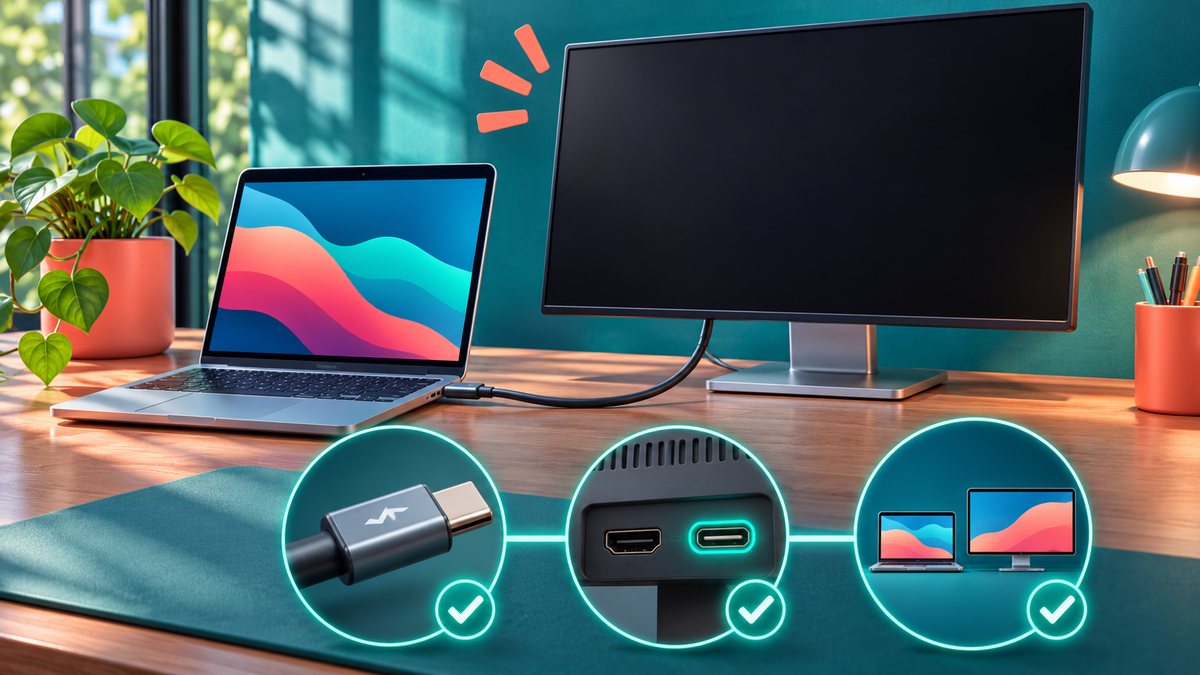
A USB-C connector does not guarantee that every cable can carry video. A monitor may charge a Mac or show a power light while its display remains blank because the cable, adapter or selected input does not support the video path. Test the simplest direct connection first.
Isolate the blank screen
- Wake the Mac and turn on the monitor. Use the monitor’s own menu to select the port receiving the cable.
- Disconnect a dock and connect the monitor directly to the Mac with a cable known to support display output. Reseat both ends firmly.
- Open System Settings, Displays, and check whether the second display appears. Try the available detection option if it is offered.
- Lower the monitor resolution or refresh rate only after it is detected, then test a different port or cable if the image still fails.
- Try the monitor with another computer, or the Mac with another display, to identify which side needs attention.
Do not assume a charging-only cable is faulty; it may simply lack the required video capability. Note the exact monitor, adapter and cable models if you contact support.
Check the Mac’s display limits
Apple’s external-display troubleshooting guide says a USB-C or Thunderbolt adapter must support the display signal, and a dock should be bypassed when isolating a blank screen. The Mac model also limits the number and resolution of external displays. Check its technical specifications before buying a new cable or adapter. A closed-lid Mac laptop may need external power plus a keyboard and mouse. If a direct cable works but the dock does not, investigate the dock’s video support and firmware rather than resetting macOS. Source check: 7 November 2026.
What to tell support
Write down the Mac model, macOS version, monitor model, dock or adapter model, cable label and the input selected on the monitor. Note whether the display works when connected directly to the Mac. Those details help distinguish a cable that only carries charging from a supported video path. If the Mac detects the screen but shows the wrong resolution, test its default resolution before changing advanced refresh settings. Do not buy a replacement adapter until you confirm the Mac and display specifications.