A file visible in File Explorer can fail to appear in a search result. That usually means the search is looking in a different location, has not indexed the folder yet, or is matching a different file name than you expect. Do not move or delete the original while troubleshooting.
Start with the folder you know
- Open the folder containing the file and read its full name, including the extension if extensions are shown.
- Search from that folder with a short, distinctive part of the name. Then repeat from This PC to compare a narrow search with a broad one.
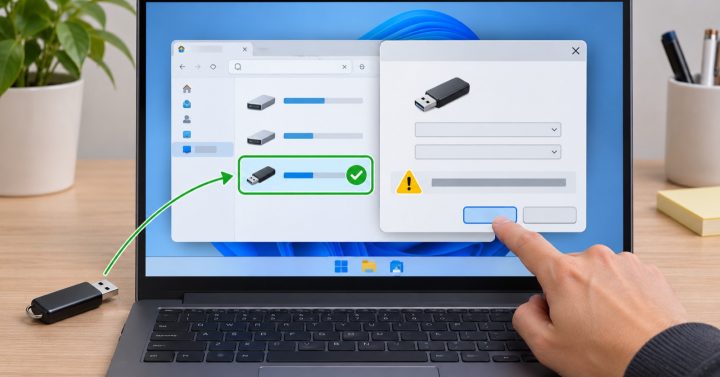
- Check whether the file is on an external drive, cloud-only folder or network share. These locations may behave differently from a local Documents folder.
- Allow time after a large copy or rename. Search results can lag behind recently changed files.
If a local folder is consistently missing from results, review Settings, Privacy & security, Searching Windows and the indexed locations. Microsoft’s search-indexing guidance explains the difference between Classic and Enhanced modes and how to include specific folders.
For one urgent file, browse to its known folder instead of rebuilding the entire index. If search works in other folders but not one location, first verify that the folder is included; rebuilding an index takes time and should be a later step.