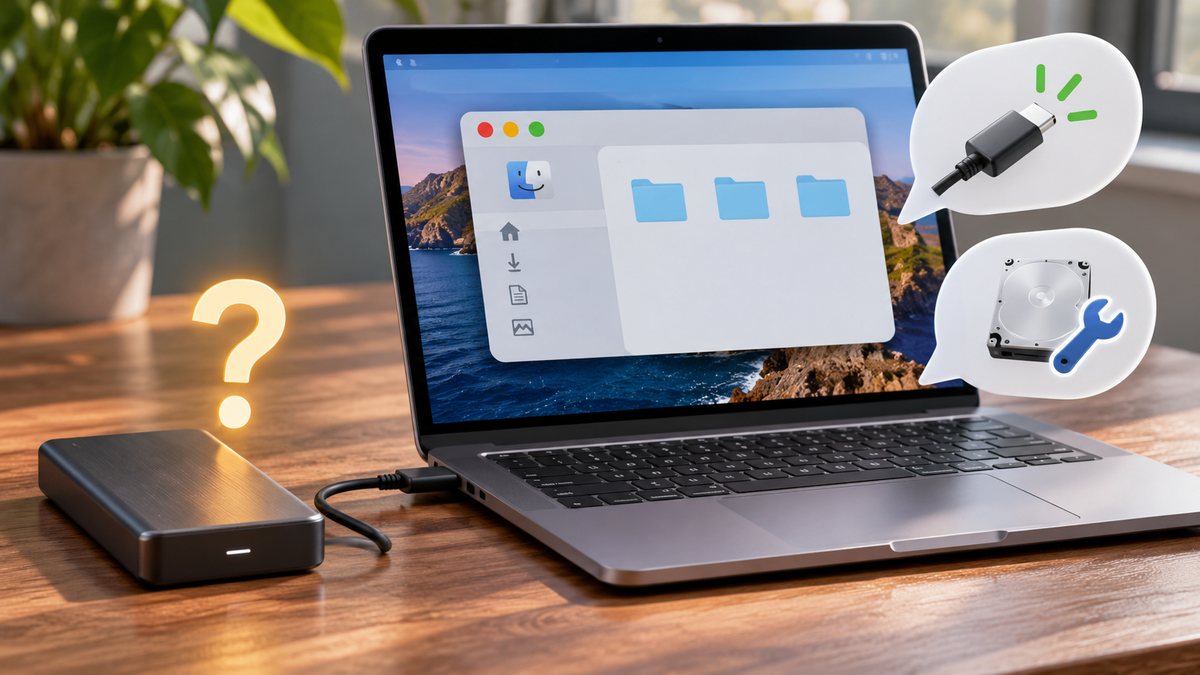
When an external drive is absent from Finder, the first question is whether the Mac sees the physical device at all. A cable, power or mount problem calls for a different response from a damaged file system. Avoid choosing Erase or Initialize merely to make the drive appear; those actions can destroy data.
Work from least risky to most specific
- Disconnect and reconnect the drive directly, using a known-good cable or port. If it needs external power, check its power supply.
- Check Finder settings for showing external disks in the sidebar or on the desktop.
- Open Disk Utility and choose View, Show All Devices. If the device and its volume appear, check whether the volume is mounted.
- If Disk Utility shows an error, make a backup of accessible files before repair where possible. If the drive is physically missing there too, test it on another trusted computer or seek hardware help.
Apple’s Disk Utility guide describes mounting an available volume. Its repair guide advises checking cable, connection and power for an external device.
Do not run repeated repairs on a drive making unusual noises or disconnecting continuously. Preserve the original data and consider a specialist if the contents are important.
Two different kinds of missing
If the drive appears in Disk Utility but not Finder, first check whether its volume is mounted. Apple’s mount-volume guide explains the Mount control. If mounting works, turn on external disks in Finder Settings → Sidebar and General as needed. If the physical device does not appear in Disk Utility at all, Finder settings will not fix it; compare the cable, port and power source before changing software.
What if the disk asks for a password?
An encrypted drive may need its original unlock password. Do not erase or reformat it to bypass the prompt. Ask the drive owner or administrator if it is a managed device. If the drive contains irreplaceable files and repeatedly disconnects or makes unusual noises, stop repeated attempts and seek a recovery specialist. Source check: 7 November 2026.