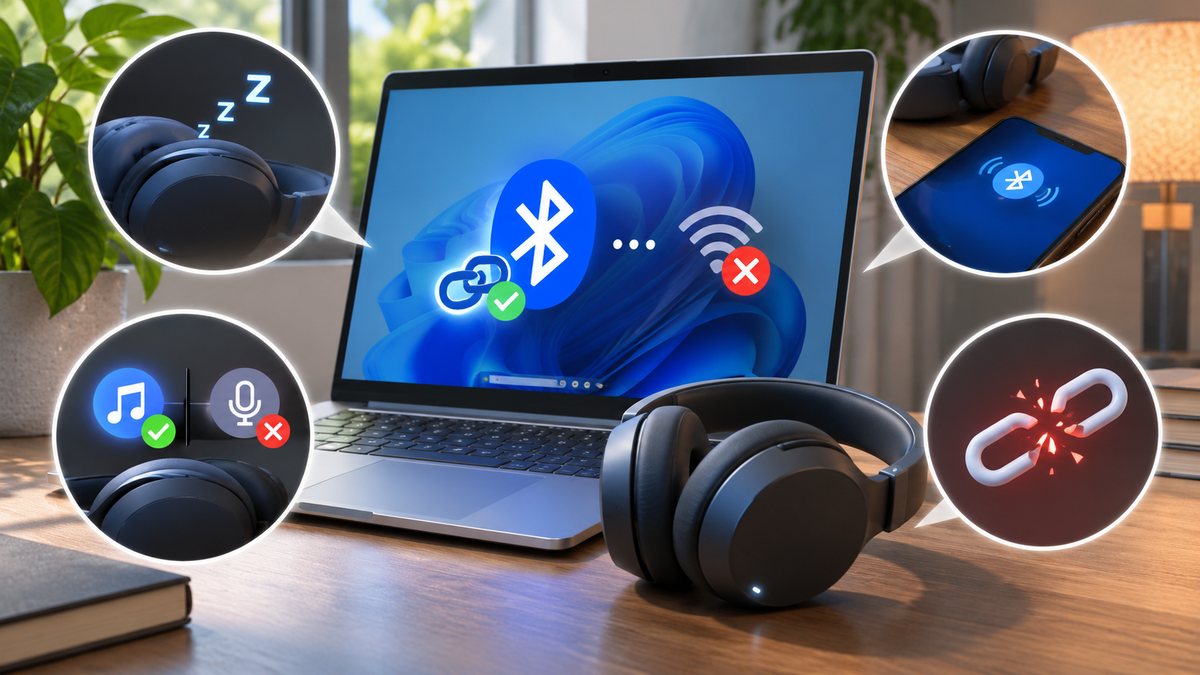
“Paired” means Windows has exchanged identity information with a Bluetooth device; it does not guarantee an active audio, input or data connection. The accessory may be asleep, out of range, attached to another phone, or exposing a different Bluetooth profile. Test the physical device and competing connections before removing drivers.
Wake, charge and place the device nearby
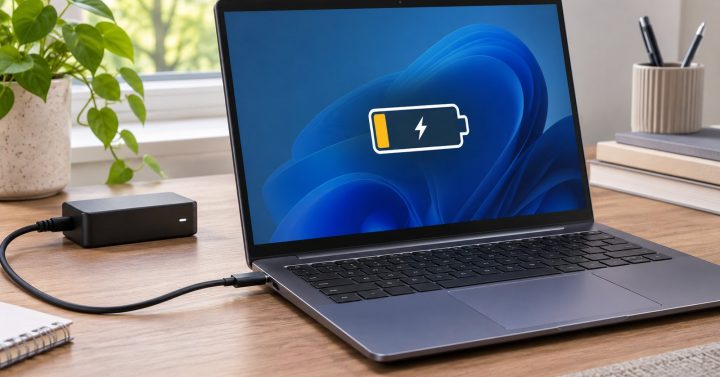
Charge the accessory and, if it has a case, charge the case as well. Move it within one metre of the PC and use the maker’s power or pairing control. A low-power accessory can remain listed as paired while refusing an active connection.
Stop using equipment that is swollen, leaking, unusually hot or physically damaged. Battery faults are a service issue, not a software setting.
Disconnect competing phones and computers
Headphones, controllers and keyboards may reconnect automatically to the last active host. Temporarily disable Bluetooth on nearby devices that have used the accessory, then select the device in Windows quick settings or Settings.
Multipoint accessories can support two hosts, but their switching behaviour varies. Follow the manufacturer’s official instructions rather than installing an unknown connection manager.
Select the right audio or input endpoint
For audio, open the sound output menu and choose the Bluetooth headphones or speaker. For a microphone, check the input device separately. A successful pairing does not force every app to change its saved audio destination.
Test with a local audio file and the Windows sound controls before troubleshooting a meeting app. If Bluetooth disappears from Settings entirely, use our missing Bluetooth guide.
Remove and pair the single accessory again
In Bluetooth & devices, open the accessory menu and choose Remove device. Put the accessory into discovery mode using its documented button sequence, then add it again. Remove only the affected device so other working pairings remain intact.
If Windows requests a code, confirm it on both screens. Do not accept an unexpected pairing request from an unidentified nearby device.
Use the built-in troubleshooter and official driver path
Run the Bluetooth troubleshooter from Windows support or the Get Help app where available. Install Windows updates and the laptop maker’s approved Bluetooth driver, then restart. Avoid third-party driver scanners.
If the device connects to another PC but not this one, record the Bluetooth adapter model. If it fails everywhere, reset the accessory only according to its maker’s instructions.
Before you make a major change
Record the device model, operating-system version and the exact time the problem appears. Save open work, use the normal restart command, and change one setting at a time. That makes it possible to undo a change and identify the actual cause. Avoid registry cleaners, driver-download sites and applications that promise an instant repair; they can introduce unwanted software or replace a correct driver with an incompatible one.
If the device belongs to an employer or school, stop before removing profiles, security software or management settings. Those controls may be required by policy. On a personal device, back up important files before a reset or reinstall. A factory reset is a last resort, not a first troubleshooting step.
When to contact support
Contact the device maker, operating-system provider or network administrator when the same fault survives a normal restart, official updates and the focused checks above. Include screenshots, error wording and the result of a test with another trusted device or network. Seek hardware service when ports are loose, a battery is swollen, the device is unusually hot, or the problem also appears outside the operating system.
Official references
- Microsoft Support: Troubleshoot Bluetooth not connecting in Windows
- Microsoft Support: Pair a Bluetooth device in Windows
Reviewed: 10 October 2026. Menu names and supported features can vary by device, software version, region and organisation policy.