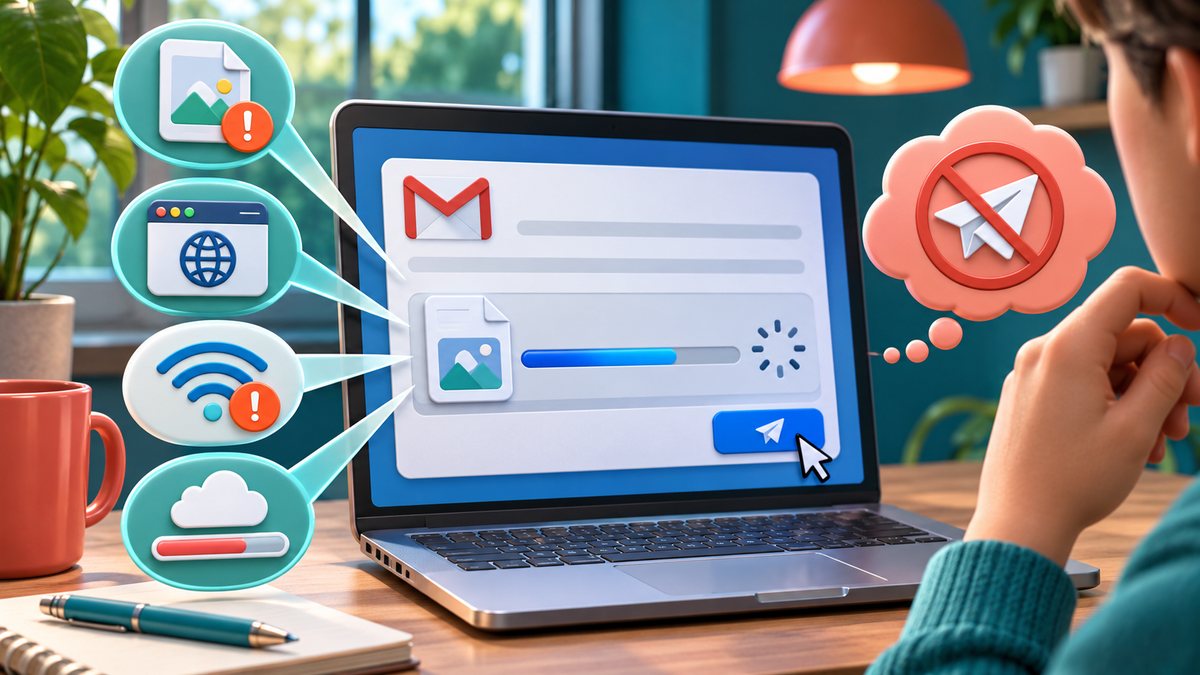
An attachment spinner that never finishes is usually a separate problem from composing the email. Do not keep pressing Send: first save the draft, then check whether the file actually appears as an attached item or a Drive link.
Isolate the failing step
- Try a small, harmless text or image file. If it uploads, compare its size and file type with the original.
- Wait for any file still uploading from another device before sending the message.
- Try a supported browser without extensions, or a different network, to separate browser and connection issues.
- Check available Google storage if uploads or sends fail across multiple files.
Gmail may turn a large attachment into a Google Drive link. Certain executable or potentially dangerous file types are blocked altogether; renaming a blocked file to disguise it is not a safe fix. If the file is legitimate but cannot be attached, use an approved file-sharing method and verify the recipient’s access.
Check the browser without losing the draft
Google recommends trying another supported browser and checking proxy settings when desktop attachments will not upload. Test in a fresh window before clearing site data or signing out. On a work computer, a network filter can block the attachment-hosting domain; ask the administrator rather than bypassing workplace controls.
If Gmail reports that a Drive upload failed, remove the unfinished attachment and add it again after confirming the network and storage. Never send a message assuming the attachment is present merely because its filename appeared briefly.
See Gmail Help: Send attachments and Gmail Help: Blocked file types for the current rules.