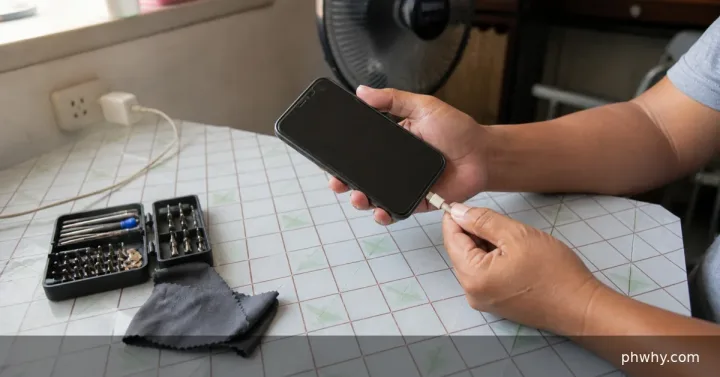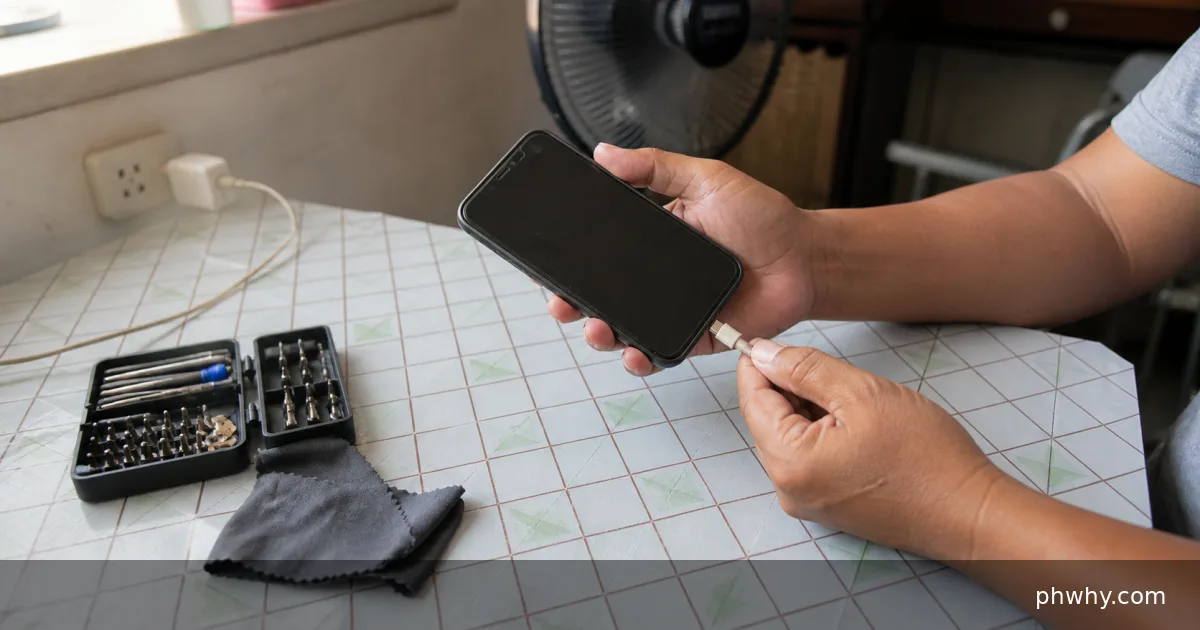
The “accessory uses too much power” message means the connected device is asking for more electrical power than the iPhone or iPad can provide through that connection. It does not automatically mean the accessory is counterfeit or permanently broken. The cause may be a power-hungry USB device, an unpowered hub, the wrong adapter, a damaged cable or debris in the port.
Disconnect first and inspect the connection
Unplug the accessory before trying it repeatedly. Check the phone or tablet port, adapter and cable for bent contacts, liquid, lint, corrosion or heat damage. Do not insert a metal tool into a charging port. If a connector is loose, discoloured, swollen or unusually hot, stop using it and arrange qualified service.
Remove any case that prevents the connector from seating fully. Reconnect once, directly, without an extension cable or extra hub. Unlock the device before connecting because iPhone and iPad can restrict wired accessories while locked.
Understand where the power must come from
Small accessories may draw power from the iPhone or iPad. Larger storage devices, audio interfaces, Ethernet adapters and multiport hubs may need their own supply. Apple says that a USB-A device showing an “attached accessory uses too much power” alert can be connected through a powered USB hub or, for compatible Lightning devices, through a Lightning to USB 3 Camera Adapter connected to power.
A powered hub has a separate wall adapter. Plugging an ordinary passive hub into another passive adapter does not create more available power.
Use the adapter intended for the device
Match the adapter to both the iPhone or iPad connector and the accessory. For a USB-C iPad, check the accessory maker’s power requirement and whether pass-through charging is supported. For a Lightning model, verify that the Apple or Made for iPhone/iPad adapter is designed for that accessory type.
Connector shape alone does not confirm capability. A cable made only for charging can behave differently from a cable rated for data, video or a specific power level. Our USB-C cable capability guide explains why two similar-looking cables can produce different results.
Try a controlled restart and update
- Disconnect the accessory and every intermediate hub or adapter.
- Restart the iPhone or iPad normally.
- Install the latest iOS or iPadOS update offered in Settings, General, Software Update.
- Reconnect only the known-good adapter and accessory.
- If the accessory has firmware, use only its maker’s official app or support instructions.
A restart can clear a temporary USB state. An operating-system update may also contain accessory compatibility fixes, but it cannot make unsupported hardware draw less power.
Isolate the part causing the warning
Test one variable at a time. Try the accessory with its recommended external power supply. Try a different certified cable of the correct type. If practical, test the accessory on another compatible phone, tablet or computer. Then test the iPhone or iPad with a simple, known-good accessory.
If only one cable or adapter causes the warning, replace that component. If several known-good low-power accessories fail on the same port, the device may need inspection. Back up important data before service.
Do not bypass the warning
Avoid unknown “power booster” adapters, modified cables and instructions that require disabling security protections. Never force a connection or continue when a plug becomes hot. Use the accessory maker’s stated power supply, and connect chargers to a sound outlet away from moisture.
Do not install a configuration profile or give remote-control access to someone who claims the message proves the phone is infected. This warning concerns the physical connection and available power; it is not, by itself, proof of malware.
When to seek support
Contact the accessory maker if its specifications say it should work but the warning appears with the recommended cable and power supply. Contact Apple or an authorised service provider if the port is damaged, the device has had liquid exposure, or multiple supported accessories fail. Record the exact alert, device model, software version and accessory model, but never share an account password or verification code.
Official references
- Apple Support: Use Apple USB-A camera adapters with USB-A devices
- Apple Support: Charge and connect with the USB-C port on iPad
- Apple Support: Allow USB and other accessories to connect to iPhone or iPad
Reviewed: 2 October 2026. Available power and supported adapters vary by iPhone or iPad model and accessory; verify the current specifications for your exact hardware.